SM-DP+ console
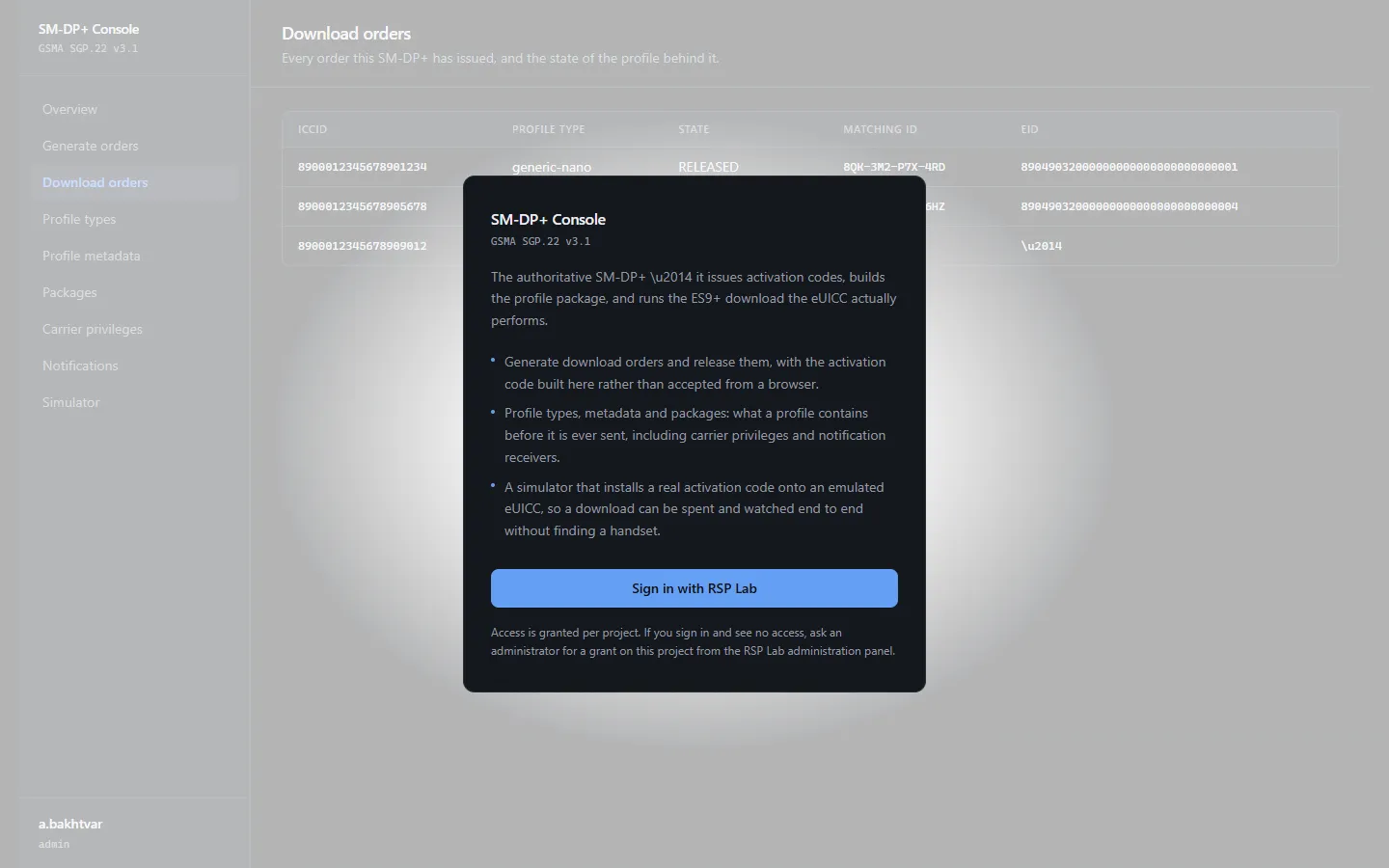
The SM-DP+ console runs the consumer eSIM server: it turns ICCIDs into activation codes a phone can scan, and controls what each downloaded profile announces about itself. It also has a simulator, so you can spend a code and watch it install without a real handset.
| Address | smdpplus.rsplab.click/console |
| Access | a grant on the SM-DP+ project (smdpp) |
| Sign-in | RSP Lab account |
Quick path: issue an activation code
- Open Generate orders.
- Enter one or more ICCIDs, or a First ICCID and How many.
- Pick a profile type.
- Leave the overrides off, and leave EID empty unless the code is for one specific eUICC.
- Choose Generate download orders. Each ICCID that reaches
RELEASEDgets an activation code. Copy all puts every code on the clipboard.
The sections
| Section | What it is for | To change anything |
|---|---|---|
| Overview | Counts of your orders by state | — |
| Generate orders | The main task: ICCIDs in, activation codes out | maintain |
| Download orders | Every order you have issued, one row per ICCID | maintain (state), admin (delete) |
| Profile types | The template behind a kind of profile | maintain |
| Profile metadata | How one ICCID differs from its type | admin |
| Packages | The stored profile packages | admin |
| Carrier privileges | Which Android apps may manage a profile type | admin |
| Notifications | Where the server reports downloads and state changes | admin |
| Simulator | Install an activation code onto a simulated eSIM | maintain |
Everything is visible with read. Below admin, the orders, types and simulated cards you see are your own.
Overview
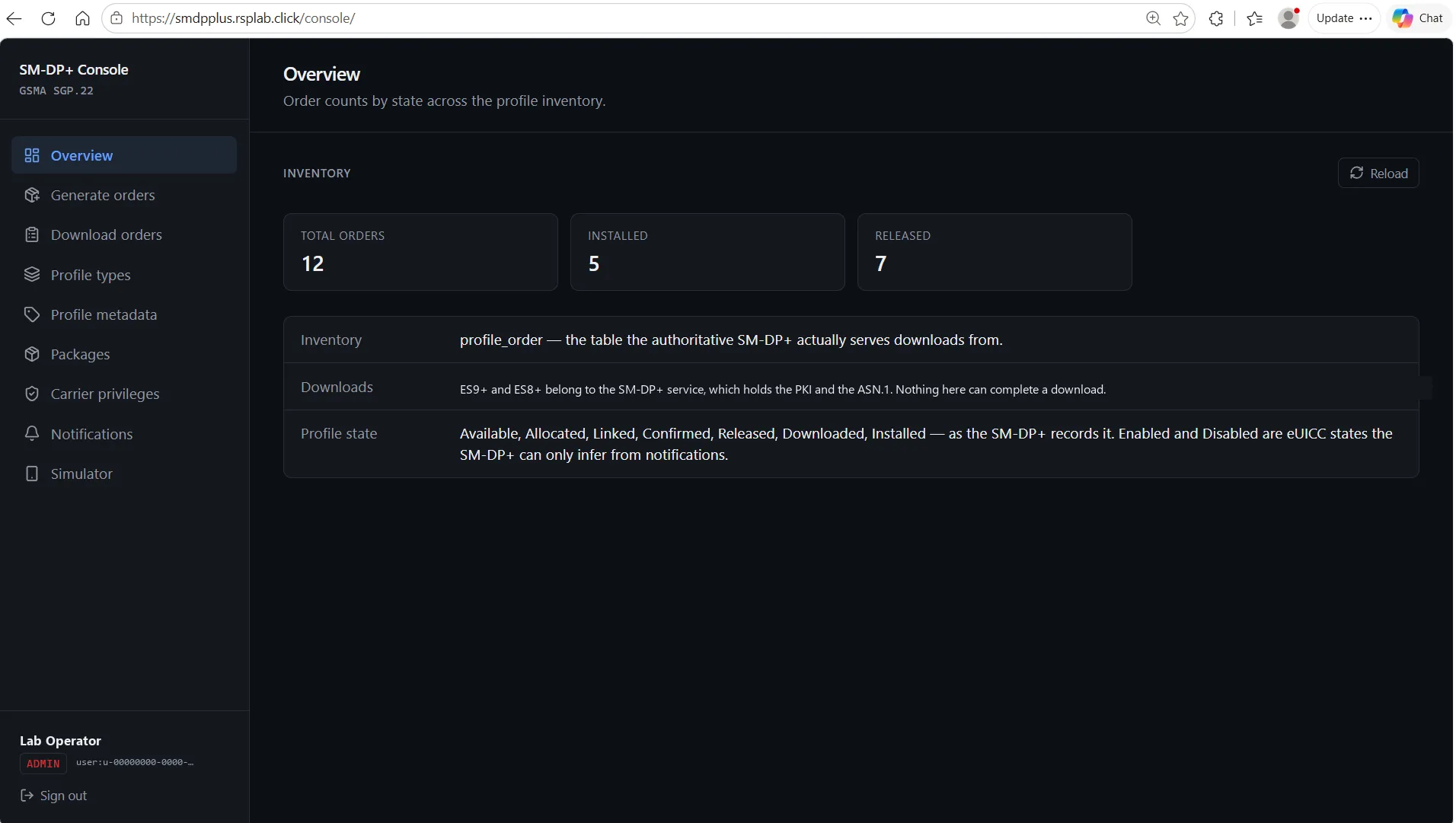
One tile per order state, counting your orders. Empty? You have not issued any yet — start at Generate orders.
Generating orders
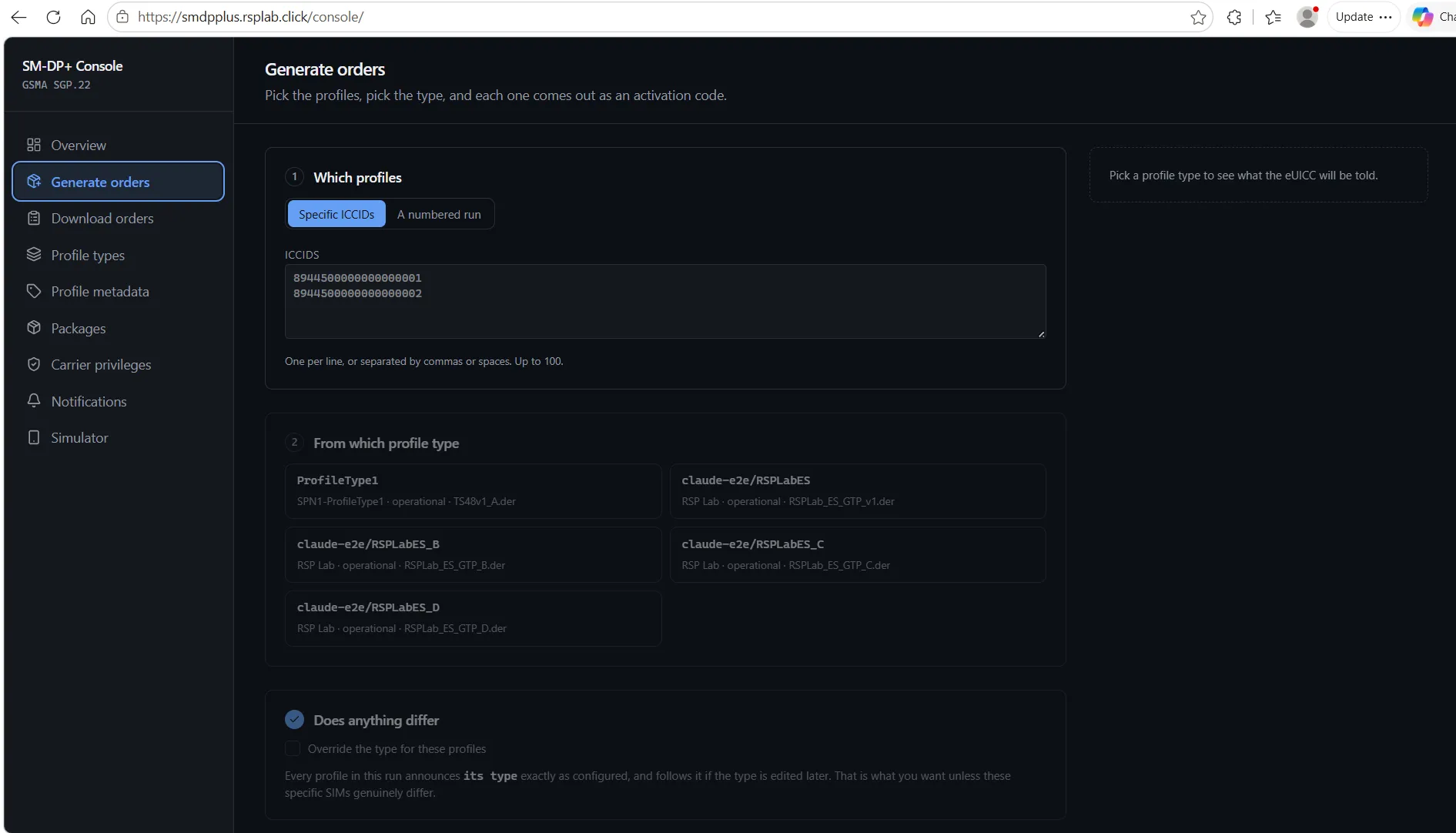
The form asks four questions in order. Each one narrows the next.
1 · Which profiles. Either specific ICCIDs — one per line, or separated by commas or spaces — or a First ICCID and How many. A run counts upwards from the first ICCID and does not recalculate check digits. At most 100 per run.
2 · Which profile type. The type decides which package is served and what
the phone is told about the profile. Each tile shows the type’s name, service
provider, class and package. Types you create are named after you —
user:you/MyType — so two people can use the same name.
3 · Does anything differ. Off by default, and that is almost always right. Turned on, you can change the service provider name, profile name, class, MCC, MNC, GID1, GID2 and SM-DS address for these ICCIDs only. Those ICCIDs then stop following their type for the fields you changed — permanently.
4 · Binding. EID (optional) ties the order to one eUICC; only that card can download it. Left empty, any eUICC holding the code can. EID is disabled for a batch, because one card can only take one of them.
Confirmation code is optional and shared with the subscriber, who must type it during download. It is stored only as a hash and cannot be shown again — note it before you submit.
What you get back
One row per ICCID. A row that fails says at which step — for example
reserving: … — and the run carries on with the next ICCID, so one duplicate
does not cost you the rest of the batch.
Download orders
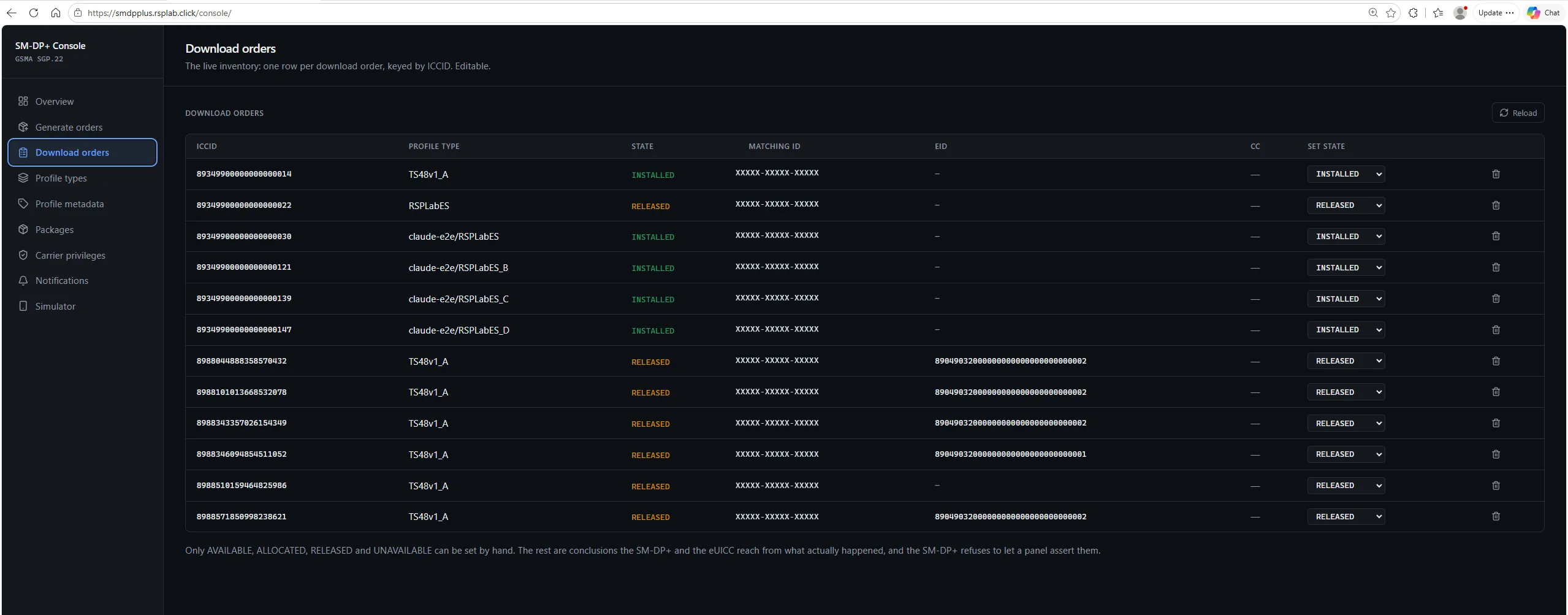
Your issued orders, one row per ICCID. The states:
| State | Meaning |
|---|---|
AVAILABLE | Stocked, not yet reserved |
ALLOCATED | Reserved, not tied to a card |
RELEASED | An activation code exists and can be used |
UNAVAILABLE | Withdrawn |
Set state moves an order between these (maintain). Delete removes it for good (admin) and asks you to confirm — there is no undo and no record is kept.
Profile types and metadata
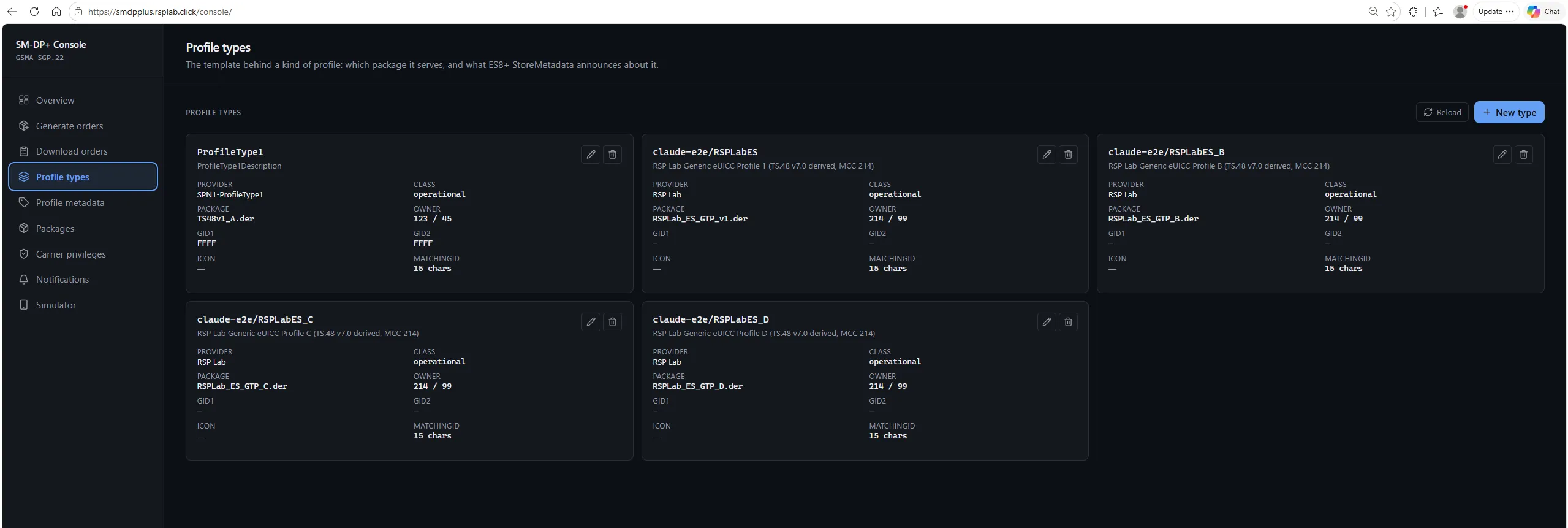
A profile type is the template: which package it serves, the service provider name, profile name, class, MCC and MNC, GID1 and GID2, the SM-DS and notification addresses, and the MatchingID length. Most profiles need nothing more.
Profile metadata is one ICCID’s exception to its type. You rarely need to edit it directly — step 3 of Generate orders writes it for you.
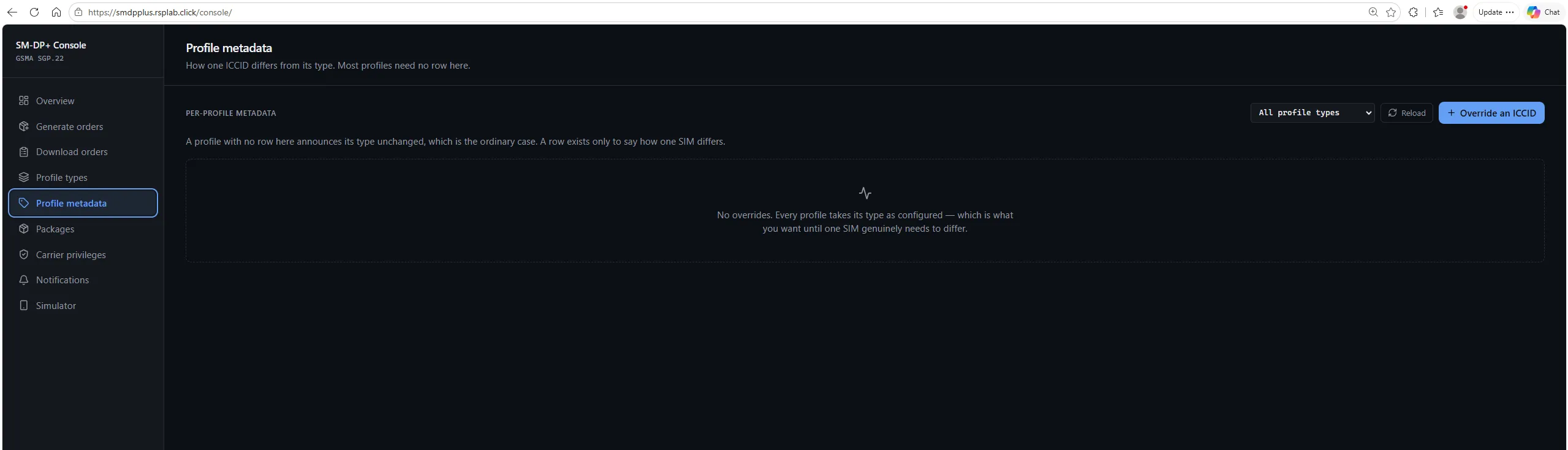
Ticking a field in the override dialog pins it, even when the value already matches the type. That profile then stops following the type for that field, so a later edit to the type will not reach it. Untick to hand it back.
A type that still has ICCIDs following it cannot be deleted.
Packages
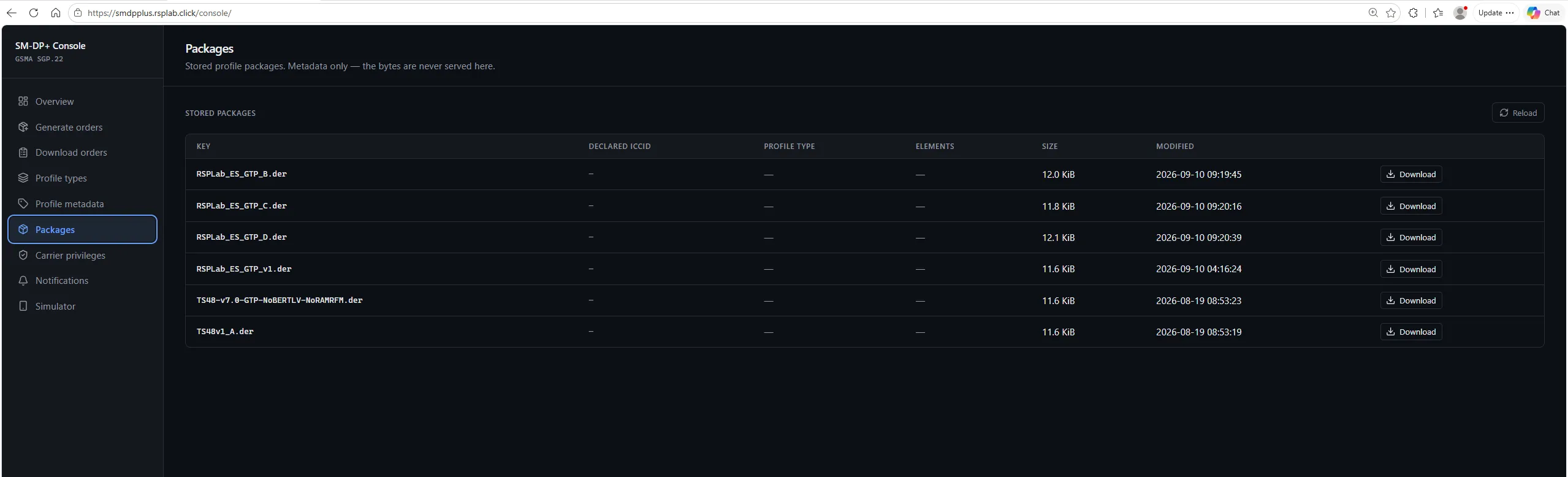
The stored profile packages, described but not opened. Download (admin) gives you a short-lived link to the file.
Carrier privileges
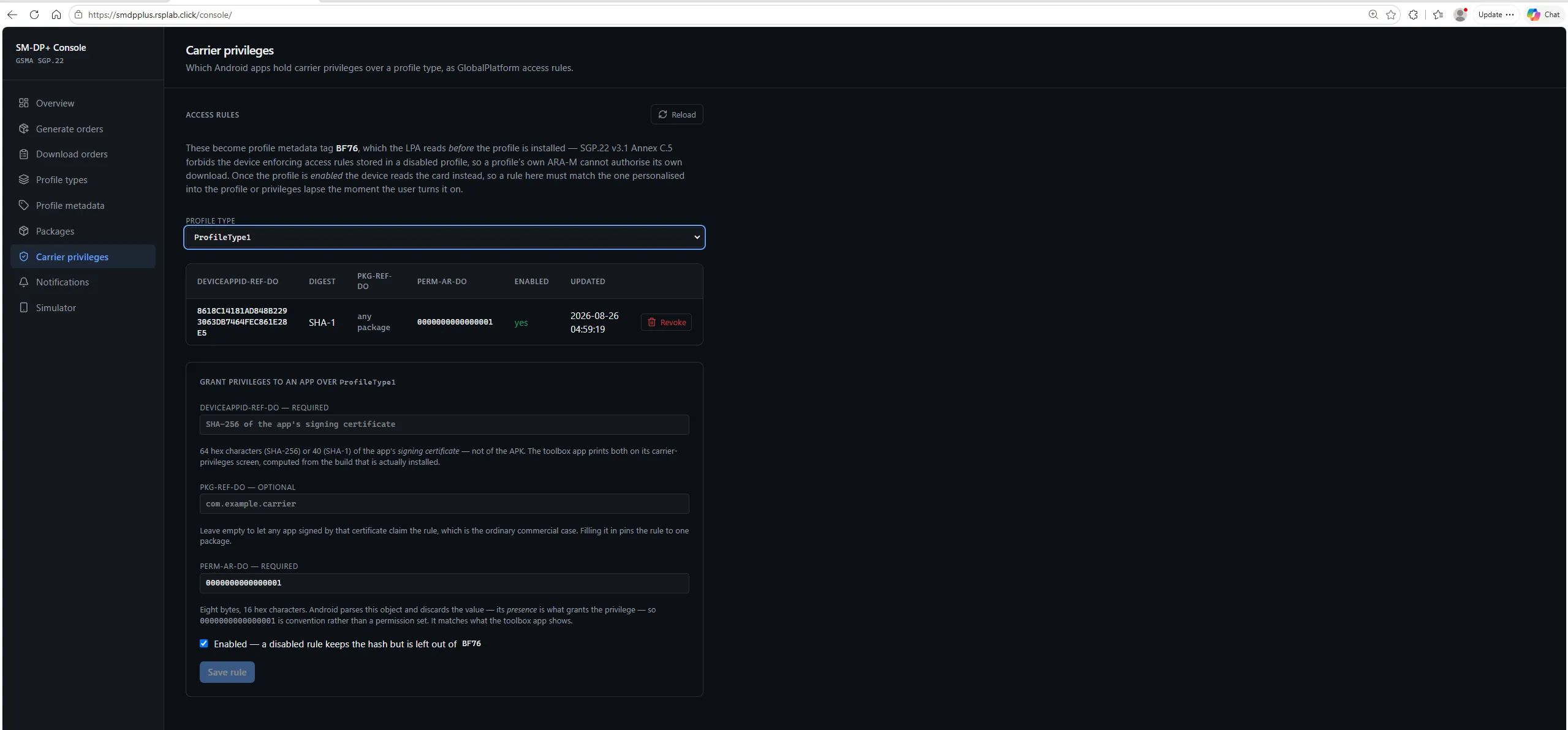
Grants an Android app special control over profiles of one type — the carrier app that manages the eSIM. Pick a profile type, then Add rule:
| Field | What to enter |
|---|---|
| DeviceAppID-REF-DO — required | The SHA-256 (64 hex) or SHA-1 (40 hex) of the app’s signing certificate |
| PKG-REF-DO — optional | The app’s package name, to narrow the rule to one app |
| PERM-AR-DO — required | The permissions granted; the default is right for most cases |
| Enabled | Untick to keep the rule but stop it applying |
Then Save rule. The app’s developer can tell you the certificate hash.
Notifications
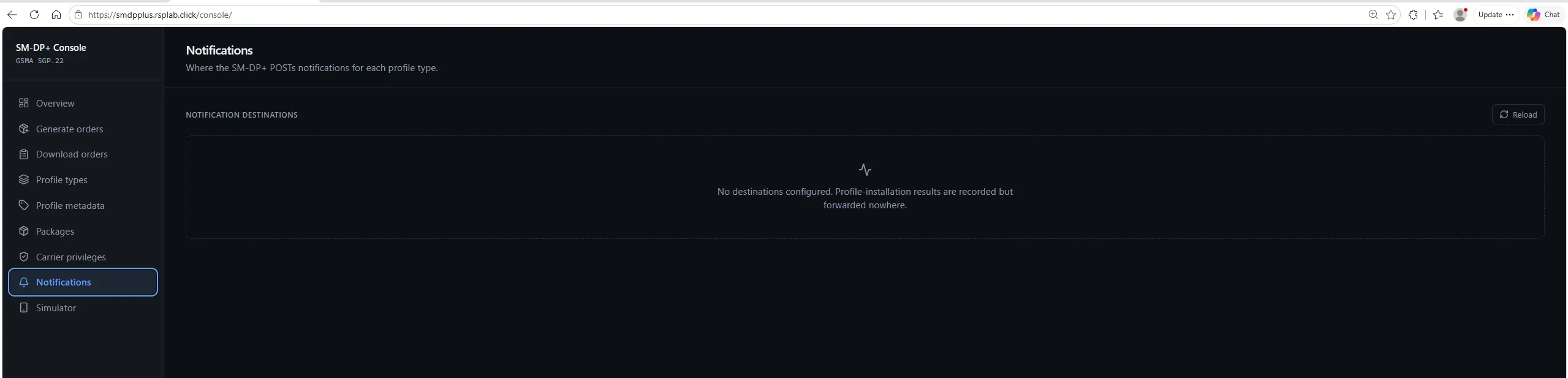
Where the server reports installs and later changes for each profile type. Each row names a profile type, a receiver, and the URL it calls.
Proving an install with the simulator
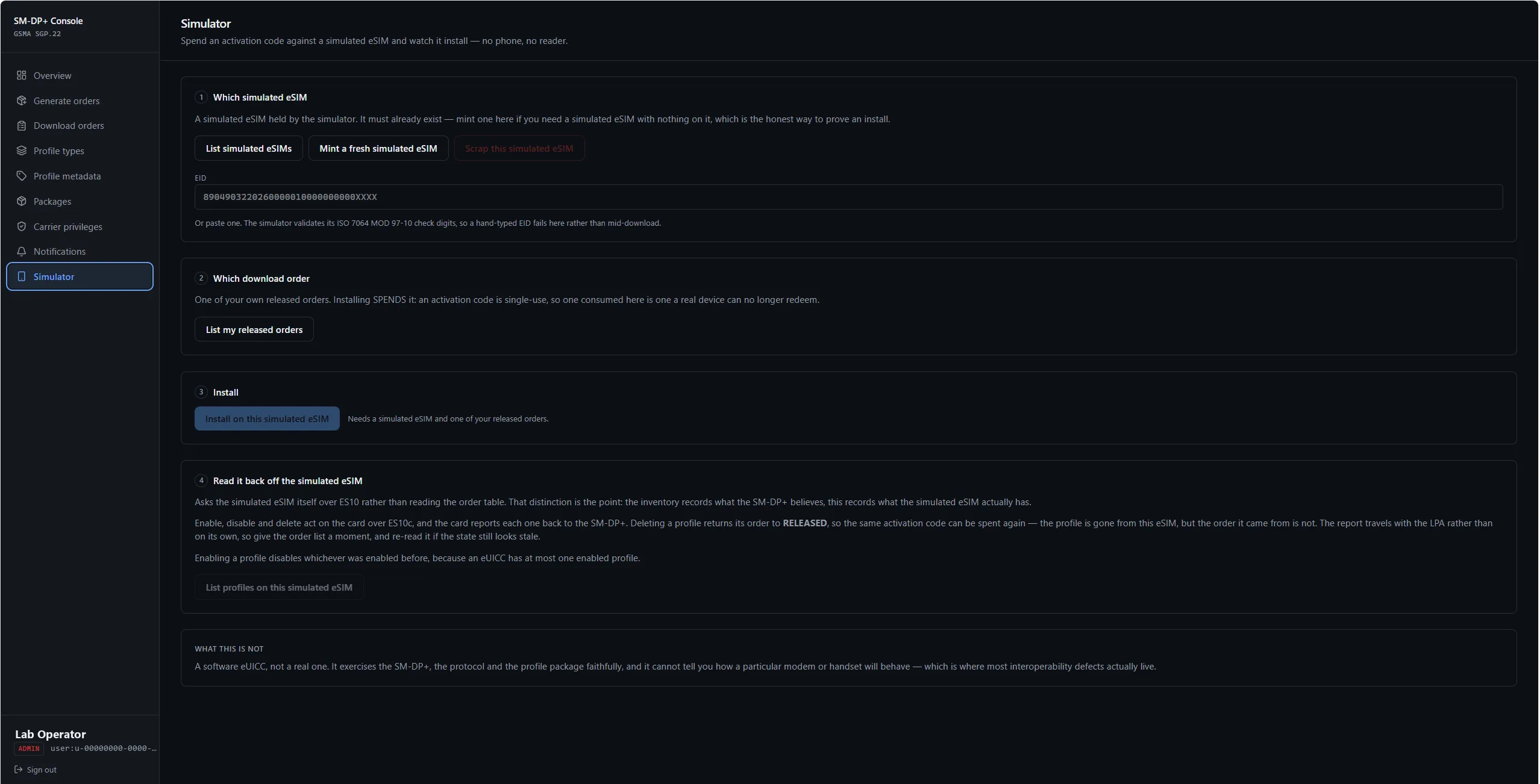
Answers the question everything above raises: does this code actually install?
- Which simulated eSIM. Pick one of yours, or mint a new, empty one — the honest way to prove an install.
- Which order. One of your
RELEASEDorders, chosen by ICCID. You never paste a code here; the console looks it up for you. - Install. Half a minute is normal. The result is the full transcript of the download, step by step.
- Read it back. List the profiles now on the card — the proof it landed. You can enable, disable and delete each one from here.
Scrap destroys a simulated eSIM and everything on it. It asks twice, naming the card, and cannot be undone.
Troubleshooting
| You see | Why | What to do |
|---|---|---|
| No access to this console | No grant on the SM-DP+ project | Ask for access |
| The Overview is empty | You have not issued any orders | Start at Generate orders |
A row failed at reserving | That ICCID is already ordered | Pick another ICCID, or check Download orders |
| A type will not delete | ICCIDs still follow it | Move or delete those orders first |