SM-DP console
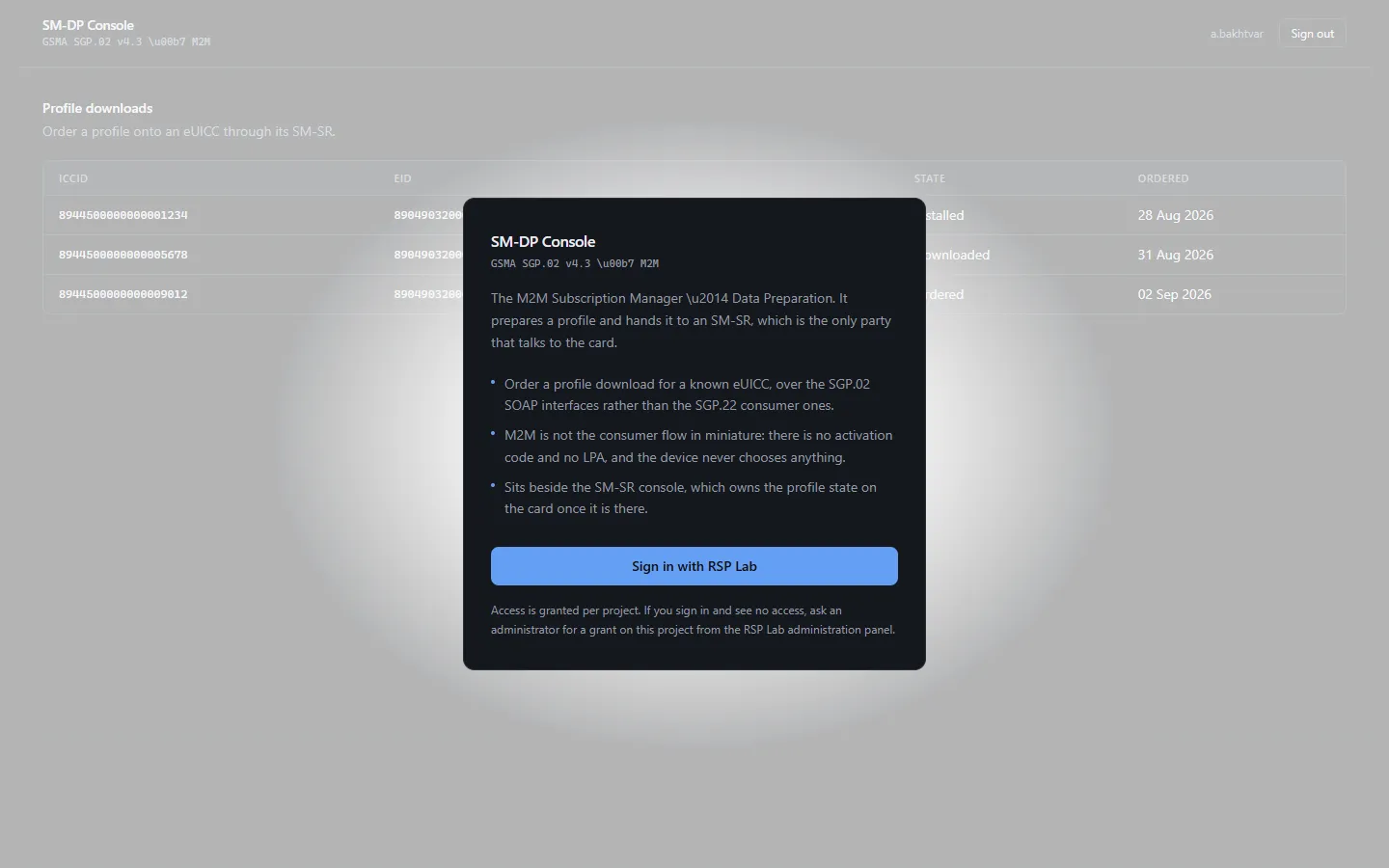
The SM-DP console drives M2M eSIM provisioning — the SGP.02 model used for connected cars, meters and industrial modules, where a server rather than the device decides what gets installed. You order a profile for an eUICC; the SM-DP prepares it and hands it to an SM-SR, which delivers it to the card.
| Address | smdp.rsplab.click/console |
| Access | a grant on the SM-DP project (smdp) |
| Sign-in | RSP Lab account |
Quick path: order a download
- Open Order a download.
- Enter the target EID (32 digits — the form checks it).
- Pick a Profile Type. The list shows how many profiles of each are available.
- Leave Choose one for me (recommended) selected.
- Choose Order download. You get Order accepted, the ICCID assigned, and a call id.
“Accepted” means the SM-DP has started the work. What happens on the card is reported to the SM-DP later — follow it in the SM-SR console.
The sections
| Section | What it is for | To change anything |
|---|---|---|
| Order a download | Send a profile to an eUICC | maintain |
| Profile inventory | See and replenish the stock of profiles | maintain |
Order a download
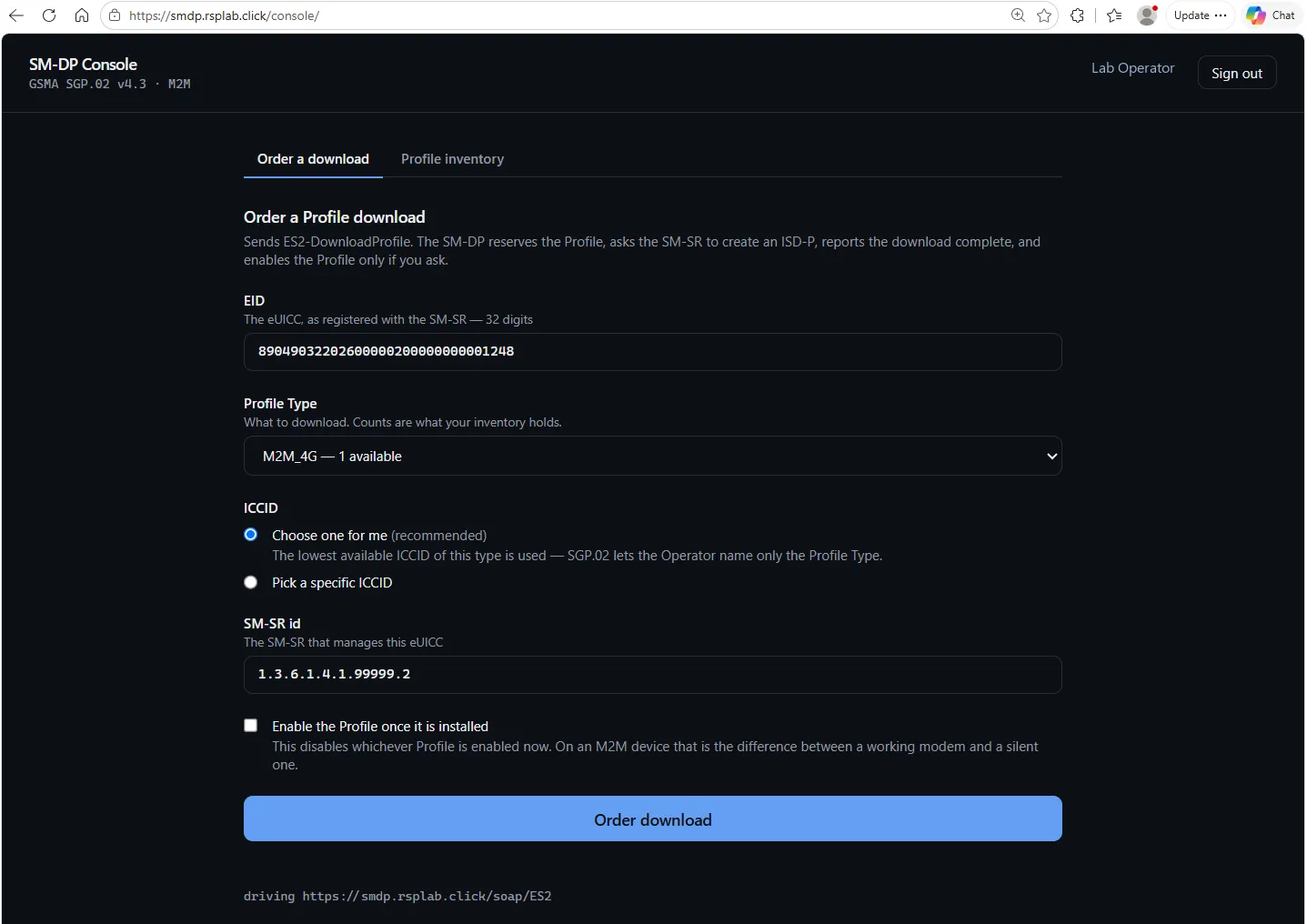
| Field | What to enter |
|---|---|
| EID | The eUICC’s 32-digit identifier. A wrong check digit is caught before you submit. |
| Profile Type | Which kind of profile. Only types with available stock can be ordered. |
| ICCID | Choose one for me takes the next available profile. Pick a specific ICCID lists them. |
| SM-SR id | The SM-SR that manages this eUICC. The default is the lab’s SM-SR. |
| Enable the Profile once it is installed | Switches to the new profile straight away. |
No profiles in stock? The form says so and offers Order Profiles, which takes you to the inventory.
Profile inventory
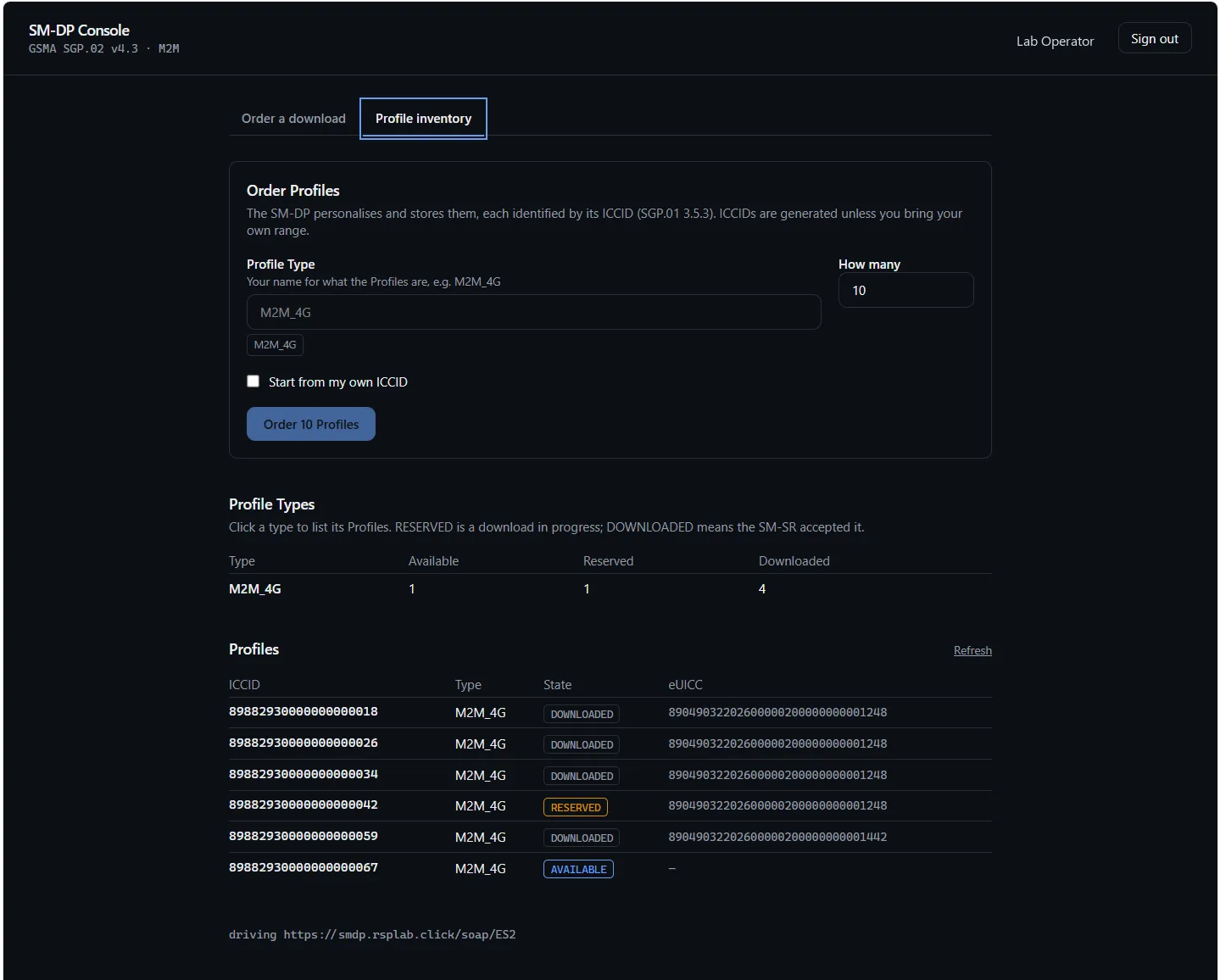
Profile Types counts each type’s profiles by state — Available, Reserved, Downloaded. Choose a type to filter the Profiles list below it to that type.
To add stock, use Order Profiles: name the profile type and how many. New profiles arrive as Available, with valid ICCIDs, ready to order. Refresh reloads the list.
Troubleshooting
| You see | Why | What to do |
|---|---|---|
| No access to this console | No grant on the SM-DP project | Ask for access |
| Order download stays disabled | The EID is incomplete or its check digit is wrong | Re-check the EID |
| No Profiles to download yet | No stock of any type | Order Profiles first |
| Order accepted, but nothing appears on the card | The install step is not performed in this lab | Follow the order in the SM-SR console; the profile is prepared and routed, not installed |