ASN.1 Editor
The ASN.1 Editor opens the binary formats of remote SIM provisioning. Paste or load an eSIM profile package or an SGP.22 message, and read it as a structured tree, down to the bytes behind every field. You can edit fields and download the re-encoded result, and ask an AI assistant questions about a profile.
| Address | asn1-editor.rsplab.click |
| Access | a grant on the ASN.1 Editor project (asn1editor) — new accounts get read |
| Sign-in | RSP Lab account |
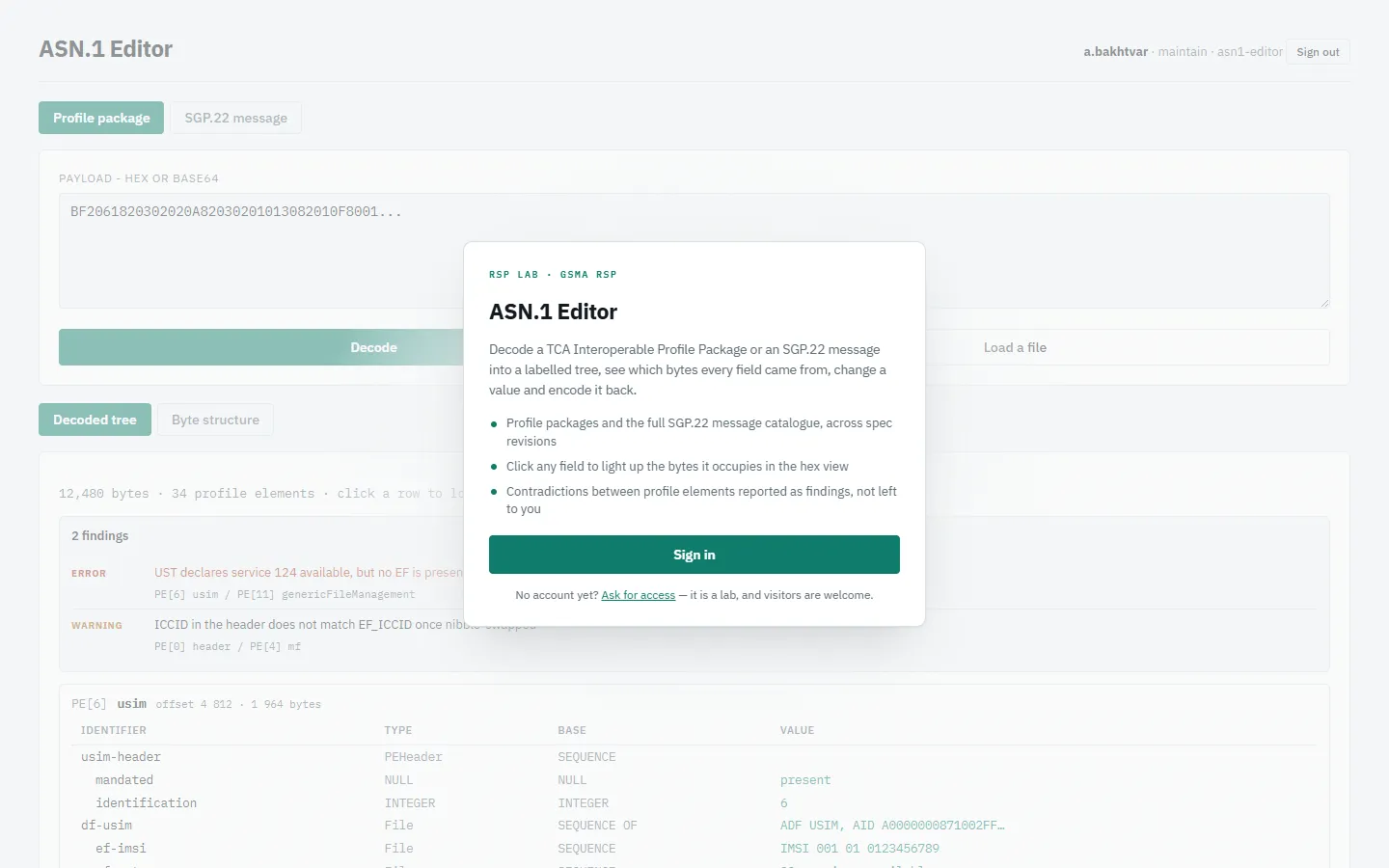
Quick path: decode a profile
- Stay on the Profile package tab.
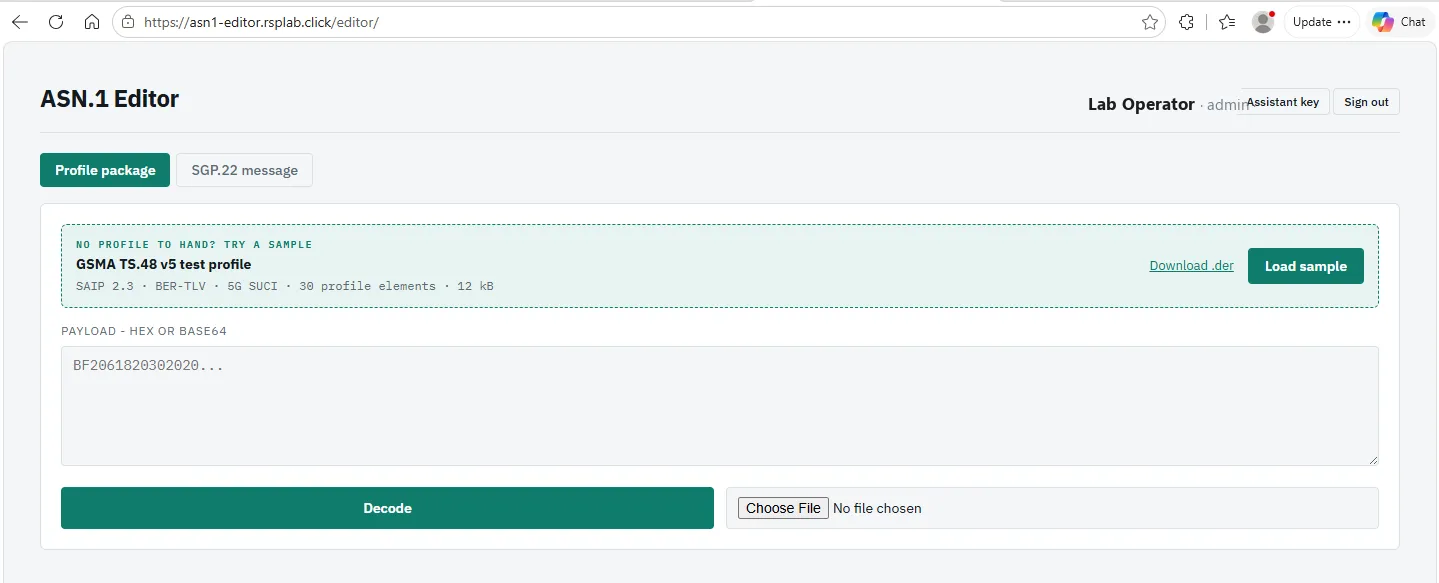
- Paste the package as hex or base64 into Payload, or Choose file
(
.der,.bin,.txt,.hex). - Choose Decode.
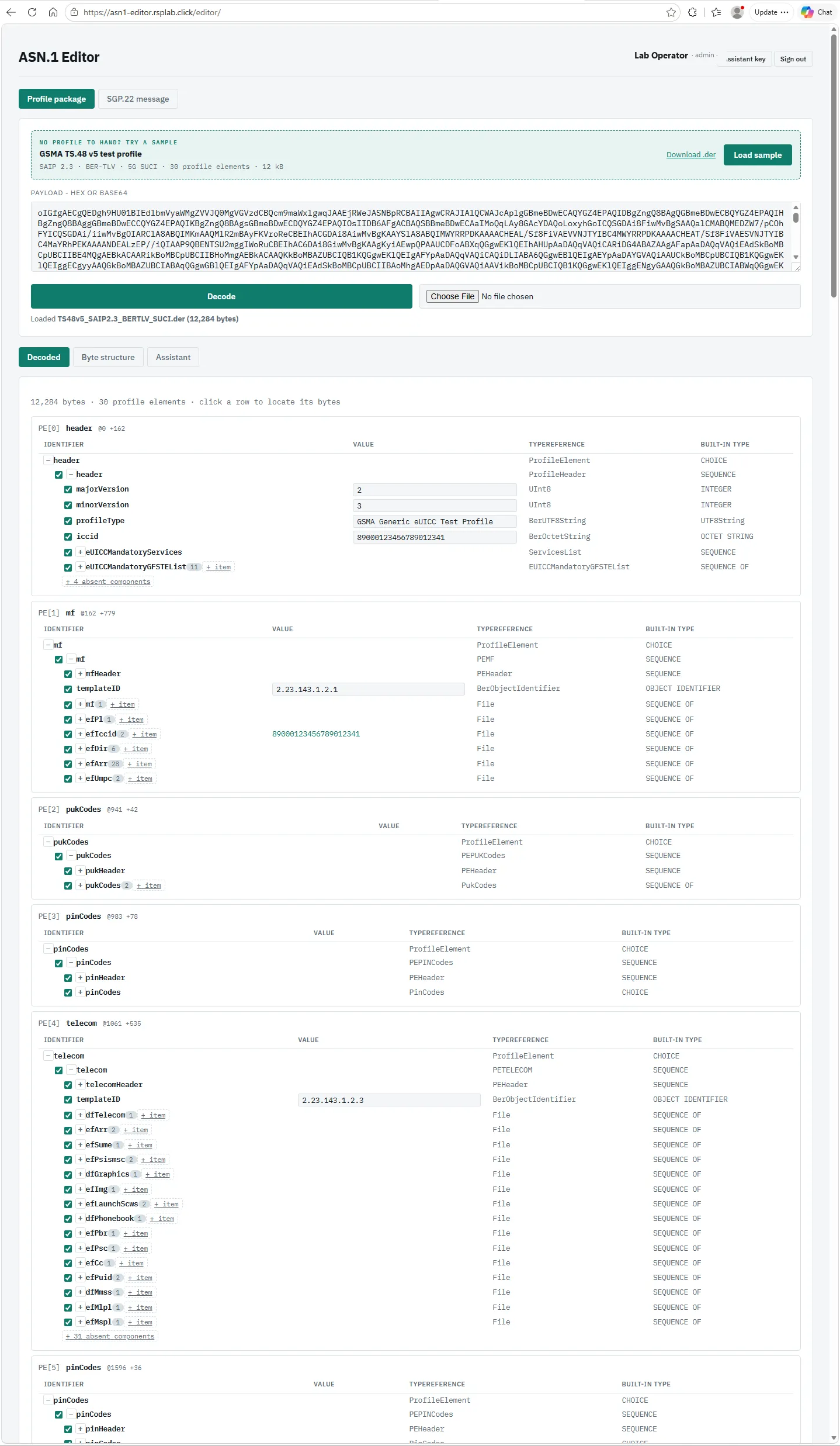
- Read it under Decoded; open Byte structure to see the bytes.
The two tabs
| Tab | For | Extra choices |
|---|---|---|
| Profile package | TCA interoperable profile packages | — |
| SGP.22 message | Any RSP message | Spec version, and Message type — type to filter the list |
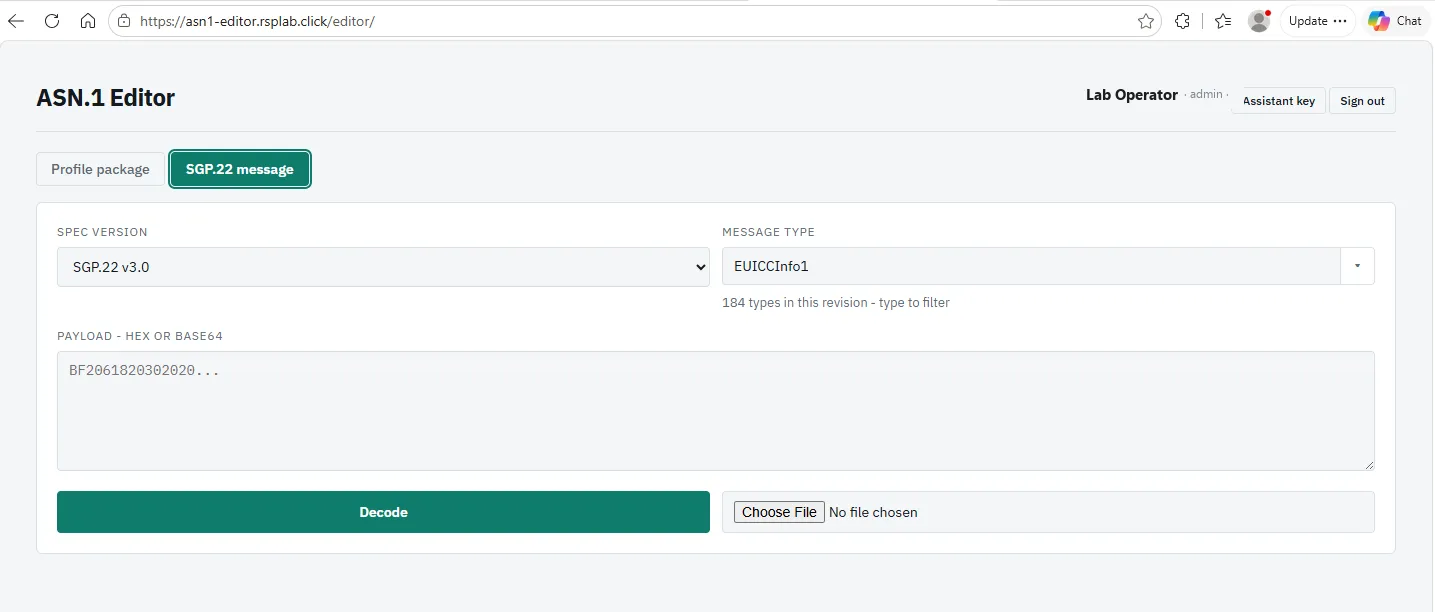
For a message, choose the spec version it was produced under. The editor never guesses it, because the same bytes can mean different things in different versions.
Reading the result
| View | What it shows |
|---|---|
| Decoded | The structure as tables, one per profile element |
| Byte structure | Every tag, length and value. Select a row to highlight its bytes in the viewer below. |
| Assistant | Ask questions about this profile (profile packages only) |
Contradictions inside a profile — fields that disagree with each other — appear as a list of ERROR and WARNING findings above the tree.
Editing
With maintain, click a value in Decoded to change it, or tick an optional field to add or remove it. A bar appears with Discard and Apply and download. Applying re-encodes the file, downloads it, and decodes the result again — so what you see is what was actually written.
Test on a device
A decoded profile is a profile you can read. Test on device is how you find out whether it works: the package on screen is installed onto a simulated phone, over the real download chain rather than a rehearsal of it.
- Decode a profile package and stay on the Decoded view.
- Choose Test on device, beside the line counting the profile elements.
- Pick a Device type.
- Choose Install on test phone, and watch the phone fill in.
- Read the verdict under Result.
If you have edits you have not applied yet, the bench says so. Apply them first — the run installs the file, not the screen.
The device type
| Type | Specification | The chain that carries it |
|---|---|---|
| Consumer | SGP.22 | SM-DP+ → LPA → eUICC |
| IoT | SGP.32 | SM-DP+ → eIM → IPA → eUICC |
| M2M | SGP.02 | SM-DP → SM-SR → OTA push → eUICC |
The type decides which chain the download takes, and so which stages the phone shows while it runs. A consumer download is pulled by the LPA; an IoT one is triggered at the eIM and pulled by the IPA; an M2M one is pushed to the card, one script at a time, and nothing on the card asks for it.
Each type keeps its own phone between runs, so profiles from your earlier runs are still on it. On a Consumer or IoT phone you can enable, disable or delete them there; an M2M phone lists them and offers none of those, because on that architecture the operator drives the card rather than the person holding it. New phone starts from an empty one instead.
Reading the outcome
| Result | What it means |
|---|---|
| Installed | The card accepted the profile. The new eSIM appears on the phone. |
| Refused by the eUICC | The card read the package and said no, and named its reason. |
| Failed | The run stopped before the card answered. The stage it stopped at is named. |
A refusal is an answer, not a breakage. It is the card telling you what is wrong with the profile, which is the whole point of running one. Under the result you get the reason it gave, the card’s signed installation result — Open in decoder loads it back into the editor — and, where the card blamed a particular profile element, Show in profile jumps to it.
Result also carries the run’s facts: the package tested, the ICCID ordered and the one that landed on the card, the matching ID, the transaction and the order as the SM-DP+ left it.
| Tab | What it holds |
|---|---|
| Result | The verdict and the run’s facts |
| Timeline | Every message, in order, by who sent it — expand one to read or decode its bytes |
| Logs | What the services themselves logged, once the run has finished |
| Runs | Your recent runs. Choose one to reopen it. |
Every run is written into the lab’s shared transcript as it happens, so it outlives the page. Close the bench, come back tomorrow, and the run is still there under Runs, with its timeline intact.
Your test phones
Test on a device runs a message against a simulated phone, and each run that needs a new one mints it. You hold a limited number, so they are worth clearing out — and you can do that here rather than somewhere else.
Under the phone, Test phones says how many you hold of your allowance. Choose Manage to open the list.
| A row shows | |
|---|---|
| The last digits of the phone’s identifier | enough to tell two apart |
| What kind of device it is | the same wording as the device choice above |
| When it was minted | |
| How many eSIMs are on it |
Scrap asks once, in place, and warns that the phone’s eSIMs and history go with it. The phone the bench is using now is marked as in use, and scrapping it means the next run mints another.
A phone that another part of the lab depends on has no Scrap button at all — a shared lab card, or one the OTA console manages. The row says which, because the reason is the useful part; a button that cannot be pressed only invites you to look for how to press it.
When a run cannot start because you already hold as many test phones as you are allowed, the editor says so — No room for a new test phone, with the count — and opens the list for you. Scrap one, then choose Run again.
The assistant
Ask plain-language questions about a decoded profile — “which services does this profile enable?” — and get answers grounded in its contents.
- It uses your own API key, from whichever provider you choose: Anthropic, OpenAI, xAI (Grok), Groq, Gemini, OpenRouter, Mistral, DeepSeek or OpenCode Go. Model is optional — leave it blank for a default. For OpenCode Go only its chat-completions models are offered; its other models are served through a different API.
- One key covers every RSP Lab tool you sign in to. Set it here or in any other tool; it is the same key, and you are only asked once.
- Choose Check key to test it before saving. The key is tried against the provider, which costs nothing, so a key for the wrong provider fails here rather than at your first question — where it would look like the editor being broken rather than the key being wrong.
- Choose Save key to store it. It is sealed and never shown again; afterwards only its last four characters appear. Removing it here does not revoke it — do that in your provider’s console.
- Model usage is billed to your own account.
- Secrets such as subscription keys are removed before anything is sent to the model. Identifiers such as the ICCID and IMSI are replaced with placeholders, and swapped back only when the answer is shown to you.
- A running line under the conversation shows the tokens spent, which your key is billed for.
Troubleshooting
| You see | Why | What to do |
|---|---|---|
| A read-only banner | Your role is read | Ask for maintain |
| Decode fails on a message | The spec version or message type does not match the bytes | Pick the version the message came from |
| “the stored key could not be read” | The saved API key can no longer be used | Enter the key again |
| No room for a new test phone | You hold as many test phones as you are allowed | Scrap one in the list that opens, then Run again |