Signing in and access
One account opens every RSP Lab application. You sign in once, and every other console you visit afterwards signs you in by itself. What you can do in each one is decided separately, per application, by the access an administrator grants you.
Quick path
- Open any application — for example the SM-DP+ console.
- Choose Sign in with RSP Lab (some applications just say Sign in).
- Sign in with Google, or with an email address and password.
- You return to the application, signed in. Open a second one and it signs you in without asking again.
If you land on No access to this console instead, your account works but holds no grant for that application yet — see Getting access.
What you see before signing in
Each console shows a short introduction over a preview of itself. The preview is a picture, not the live application — nothing in it can be clicked.
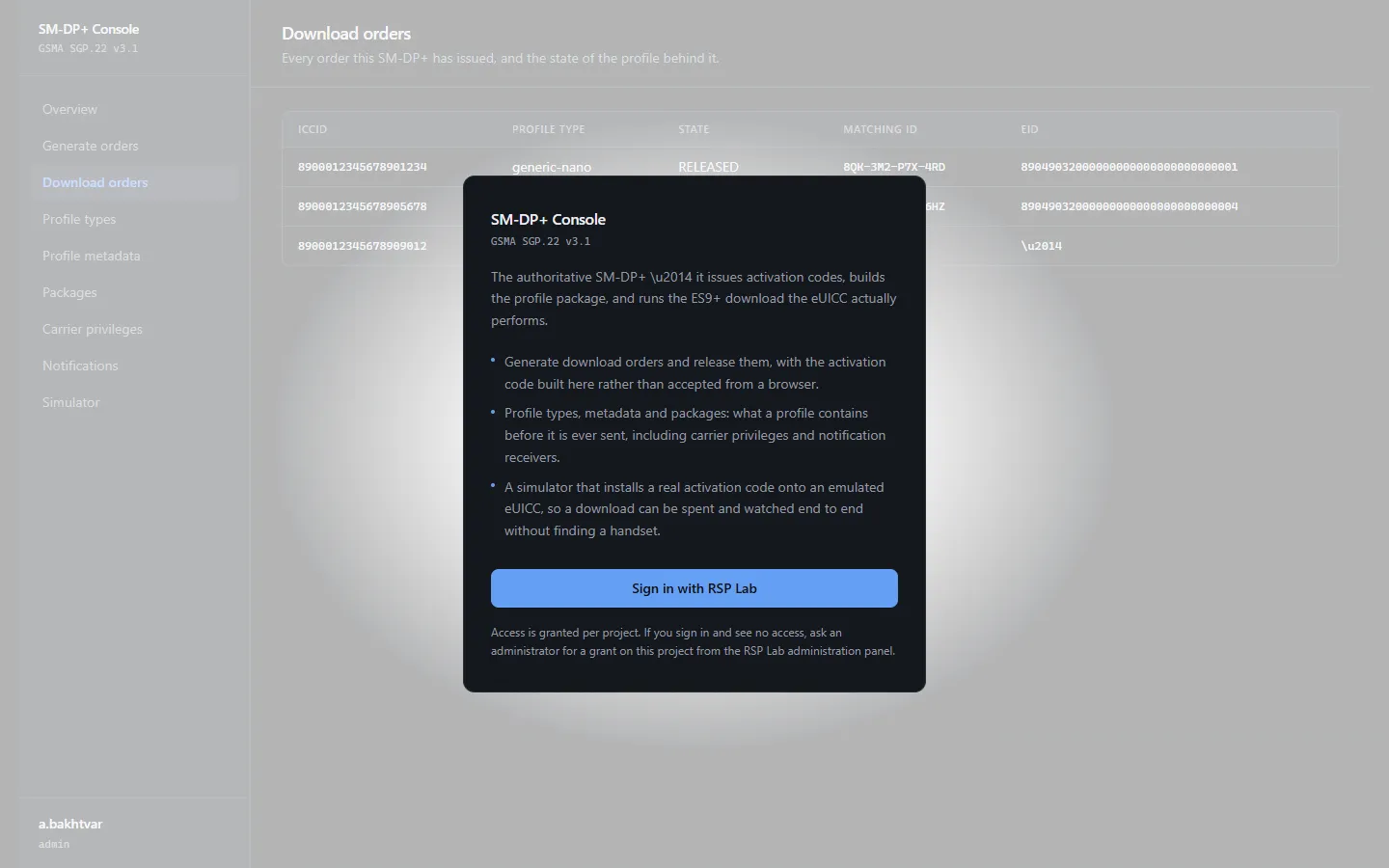
The sign-in page
Signing in happens on the shared RSP Lab sign-in page at sso.rsplab.click,
never inside an application. Two ways in:
| Option | Notes |
|---|---|
| Continue with Google | The quickest. Your Google account’s email becomes your RSP Lab identity. |
| Email and password | Create an account on the same page. Passwords must be at least 12 characters. |
The two are separate accounts even when they share an email address. Signing in with Google one day and a password the next gives you two identities with two sets of access. Pick one and stay with it; an administrator can merge them if it has already happened.
Why the second application does not ask
After you sign in once, every other application checks with the sign-in page behind the scenes and signs you straight in. You may see Signing you in… for a moment. There is nothing to do.
Signing out of one application ends your session everywhere, so the next application you open will ask again.
Roles
Access is granted per application, at one of three levels. Holding a role in one application gives you nothing in another.
| Role | What it allows |
|---|---|
| read | Look at everything the console shows you. Change nothing. |
| maintain | Day-to-day operation: create orders, register devices, queue work. |
| admin | Everything, including deleting records and handling key material. |
Every console shows every section and every button to everyone who can sign in. If your role is too low for an action, the console tells you when you try it, rather than hiding the button — so you can always see what exists and ask for what you need.
Getting access
A new account starts with read access to the ASN.1 Editor and the Attach Flow Inspector, and nothing else.
For anything more, ask an administrator — most sign-in pages have an Ask for access link. Say which application you need and what you want to do there, so they can grant the right role. The grant takes effect the next time you sign in.
Troubleshooting
| You see | What it means | What to do |
|---|---|---|
| No access to this console | Your account has no grant for this application. | Ask an administrator for access. |
| A button says your role is too low | You can see the action but not perform it. | Ask for a higher role on this application. |
| Signing you in… does not finish | The sign-in page did not answer. | Reload once. If it persists, sign in again from the button. |
| Asked to sign in again after an hour idle | Your session expired. | Sign in again; nothing you saved is lost. |