Applet Lab
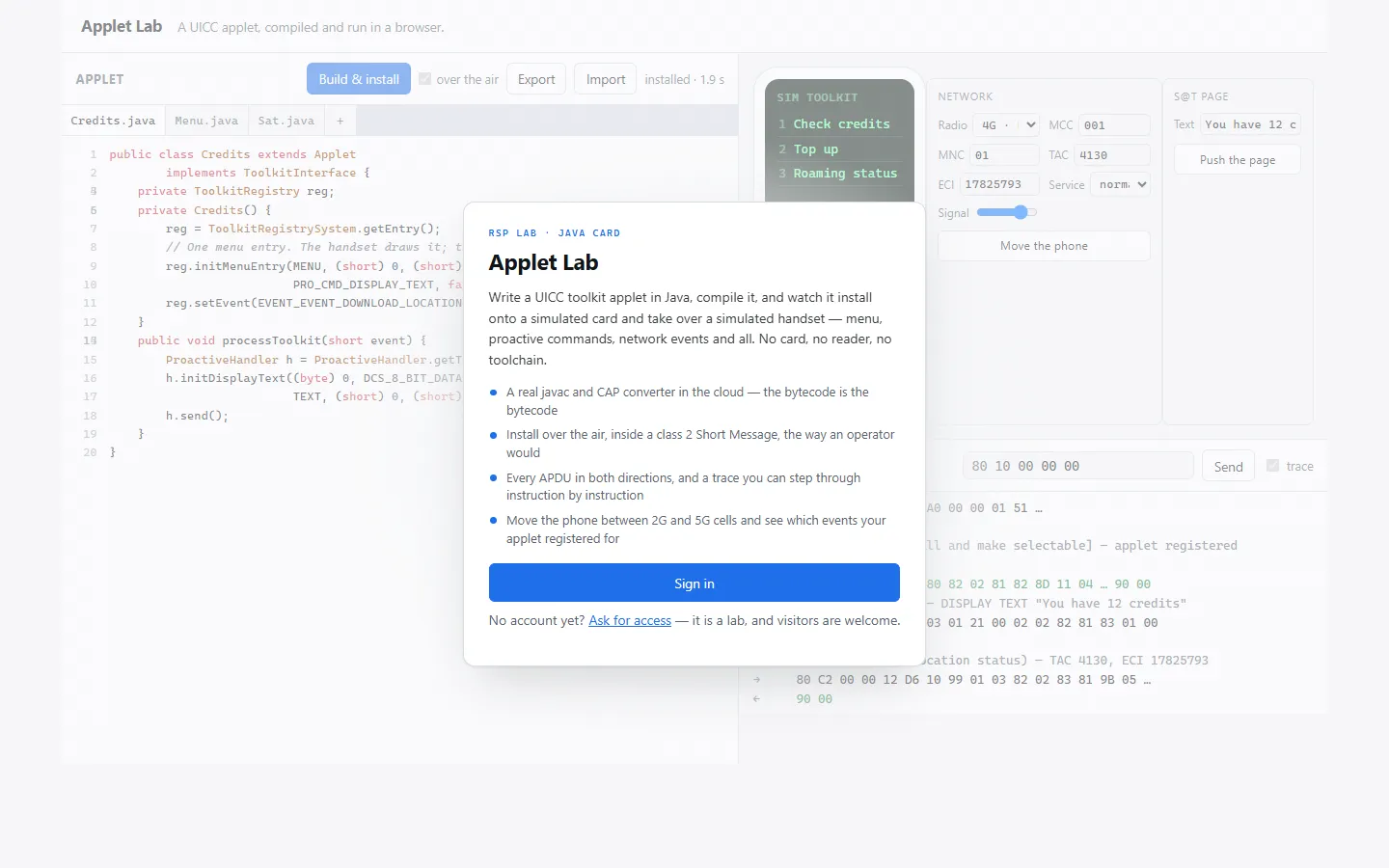
Applet Lab is a workbench for SIM toolkit applets — the small Java Card programs that put menus on a phone’s SIM screen, react to the phone moving between cells, or send SMS. Write one, build it, install it on a simulated card, and use it from a simulated phone, without leaving the page.
| Address | appletlab.rsplab.click |
| Access | any signed-in RSP Lab account |
| Sign-in | RSP Lab account |
| In-app guide | appletlab.rsplab.click/guide.html |
Quick path: run a sample applet
- Choose Samples and open one — MenuKiosk is a good first choice.
- Choose Build & install. The card console logs the build, the install, and the TERMINAL PROFILE that follows it — the phone sends it automatically after every install, local or over the air, just as a real one does when it starts.
- Press ☰ on the phone. The applet’s menu appears; select an item. What the applet displays appears on the phone screen.
The workspace
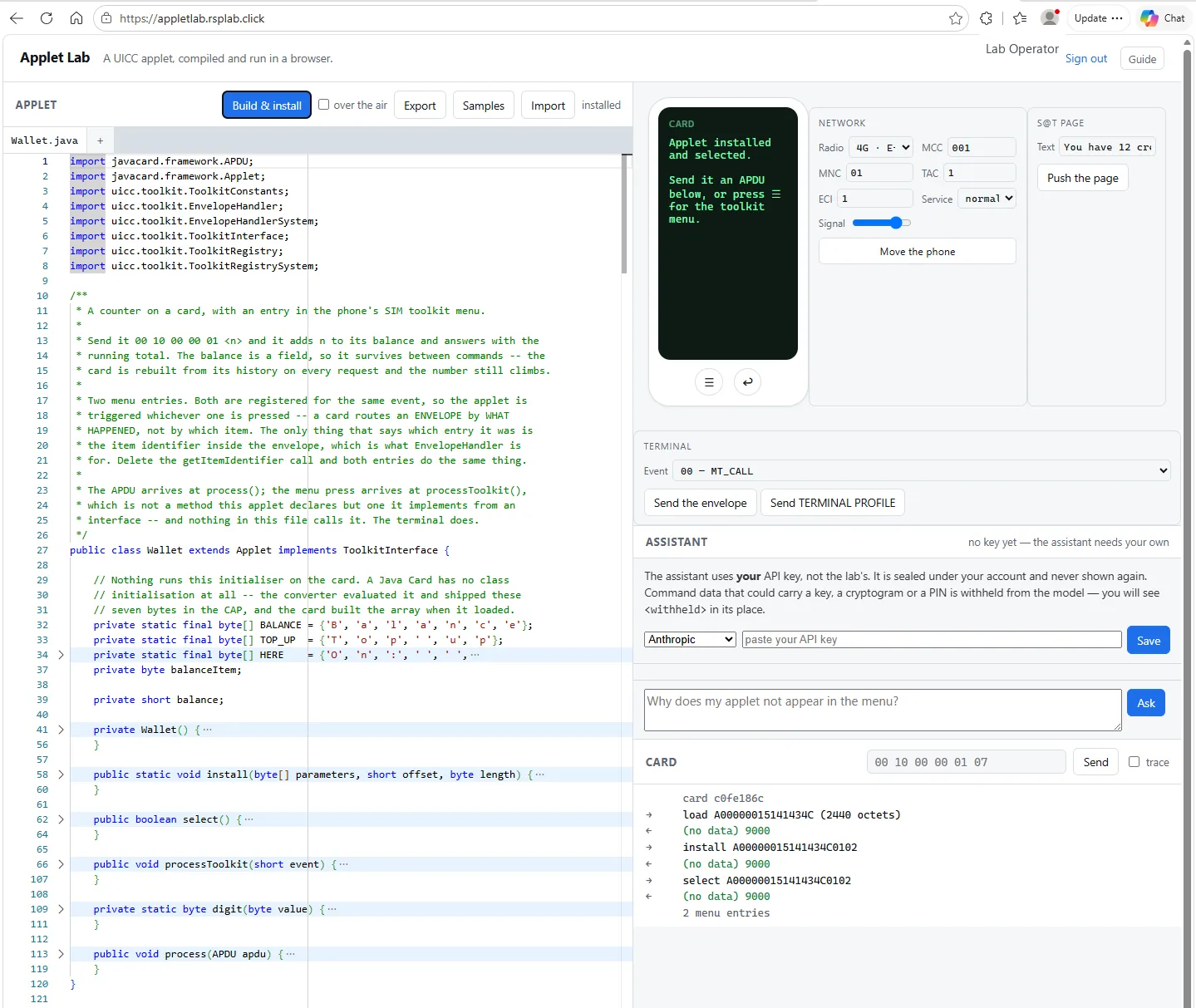
| Area | What it does |
|---|---|
| Applet editor | Your Java sources, one tab per file |
| Phone | A simulated handset. Its screen shows what the applet displays. ☰ opens the SIM toolkit menu, ↩ goes back. |
| Network | Radio type, MCC, MNC, cell and signal. Move the phone tells the applet the location changed. |
| S@T page | Push a page to the card’s browser, which runs the commands it carries |
| Terminal | Send any toolkit event, queue what the phone answers, and send TERMINAL PROFILE again — as a handset does when it restarts |
| Assistant | Ask questions about the applet and the session |
| Card console | Send raw APDUs and read the log of everything exchanged |
The phone screen
Whatever the applet puts in front of the user appears on the phone: DISPLAY TEXT, GET INPUT, GET INKEY, SELECT ITEM, the idle-mode text, and anything else carrying an alpha identifier — which is what a phone shows while a card sends a message. Text is decoded by the coding scheme the card used.
A command the handset refused is drawn as a refusal — Not shown: … — rather than as nothing at all. An applet that does not check the result has no idea its message was never seen, so the screen says which ones were not.
Phone answers
A card asks and the handset answers inside a single exchange, so there is no moment to stop and prompt somebody: the answer has to be waiting before the applet asks. Queue it first, then press the entry that asks.
| Control | Does |
|---|---|
| Text | Answers GET INPUT and GET INKEY |
| Item | Answers SELECT ITEM, by the identifier the card gave the entry |
| Queue this answer | Adds what is in Text or Item to the queue |
| Queue a refusal | What a person pressing back looks like to the card |
| Clear the queue | Forgets the answers not yet used |
The line underneath says how many answers are waiting. They are used in order, one per command that carries data back.
With nothing queued the handset answers “performed” and carries nothing back — exactly what a real one does when the user dismisses the box. Worth seeing once, because an applet that treats that as an empty string rather than as no answer behaves the same way on a real phone.
MenuKiosk, end to end: type 2500 into Text, choose Queue this
answer, then press Top up on the phone. The applet reads 2500 back.
S@T pages
Send S@T page pushes a page to the card’s browser, and each command the page carries is issued to the handset and gets a real answer. If the handset refuses one, the rest of the page does not run, and the card console names the command that stopped it.
The limits are worth knowing before you read too much into a result: of the format’s thirteen instruction types only one runs — the one that carries a proactive command — only 8-bit text is decoded, and there are no variables and no navigation between cards, so only the first card of a deck runs.
Building
| Button | Does |
|---|---|
| Build & install | Compiles, converts to a CAP file, and installs it on the card |
| over the air | Installs by sending the INSTALL command inside a Short Message instead, as an operator would |
| Export | Saves all your source files to one file |
| Import | Replaces your sources with a saved file |
| Samples | Opens a worked example |
Your work is kept in your browser. Export before switching machines or clearing browser data.
The samples
Eleven worked examples. The picker labels each by what it demonstrates and which way the traffic goes; the name below is the class you get in the editor.
| Sample | Shows |
|---|---|
| EventProbe | Registering for every event the phone can report, and which ones fired |
| SmsCourier | Receiving a Short Message, and sending a long one back in two parts |
| UssdDialer | Sending a USSD string and reading the network’s answer |
| CardReader | Reading files on the SIM, and being refused without a PIN |
| MenuKiosk | The card asking the phone: DISPLAY TEXT, GET INPUT and SELECT ITEM |
| BipEcho | Opening a data channel, writing to it and reading the answer back |
| UsimReader | Reading the USIM application’s files, and the access conditions that refuse |
| LocationScout | Location both ways: pushed when the phone moves, and asked for by the applet |
| FieldWatcher | Counting contactless taps, which reach the applet as toolkit events |
| LegacyAlive | The older SIM toolkit API, and checking what the phone actually answered |
| BipParser | Being given a reply whose length field lies, and refusing it |
LocationScout’s Everything button asks all eight location questions at once
and names each one with what the handset did — loc:9 imei:8 nmr:x time:7 lang:2 rat:1 srch:x batt:x. A number is how many octets came back, x means the
handset refused the question, and - means it answered with nothing.
The assistant
Ask plain-language questions about what your applet is doing — “why does my applet not appear in the menu?” — answered against this session: your sources, the build, and the APDUs the card has actually exchanged.
- It uses your own API key, from whichever provider you choose: Anthropic, OpenAI, xAI, Groq, Google Gemini, OpenRouter, Mistral, DeepSeek or OpenCode Go. Paste it and choose Save. It is sealed under your account and never shown again.
- One key covers every RSP Lab tool you sign in to, so if you have already set one elsewhere the assistant is on here too. Model usage is billed to your own account.
- Until a key is set, the panel says so and the Ask box stays inert. Nothing in the lab is billed to you, and nothing is sent anywhere, before that.
Debugging
Tick trace in the card console before sending a command to record every instruction the applet executes. Then drag the step slider to move through the execution one instruction at a time — values, stack and frames at each step. More records the next stretch of a long run.
Troubleshooting
| You see | Why | What to do |
|---|---|---|
| The menu never appears | The install did not finish, so the TERMINAL PROFILE that follows it never went | Check the card console for the install, then Send TERMINAL PROFILE and press ☰ |
| Not shown: … on the phone screen | The handset refused that command | Nothing to fix on the phone — the point is that the applet’s message was never seen |
| The applet reads nothing back from a question | Nothing was queued, so the phone answered “performed” and carried no data | Queue an answer under Phone answers before pressing the entry that asks |
| A build error | The Java did not compile, or uses something Java Card lacks | Read the message: it names the line and the reason |
| An over-the-air install is refused for its security settings | The lab holds no OTA keys, so secured packets cannot be built | Use the unsecured settings, or Build & install directly |
| A method “fails by name” | The simulator does not guess at behaviour it cannot model | The message names what is unsupported |
| The assistant says it has no key | No API key is set on your account | Paste one in the Assistant panel and choose Save |
<withheld> in the assistant’s view of a trace | That instruction could carry key material, a cryptogram or a PIN | Nothing to fix — the header is still there, and it is usually what answers the question |