Entitlement console
When a phone asks “may I use Wi-Fi calling here?” or “may I activate an eSIM on this line?”, it asks an entitlement server. This console manages what that server answers: the subscribers and their lines, which services each line is entitled to, and the eSIM activation orders devices have started.
| Address | entitlement-server.rsplab.click/console |
| Access | a grant on the entitlement project (entitlement) |
| Sign-in | RSP Lab account |
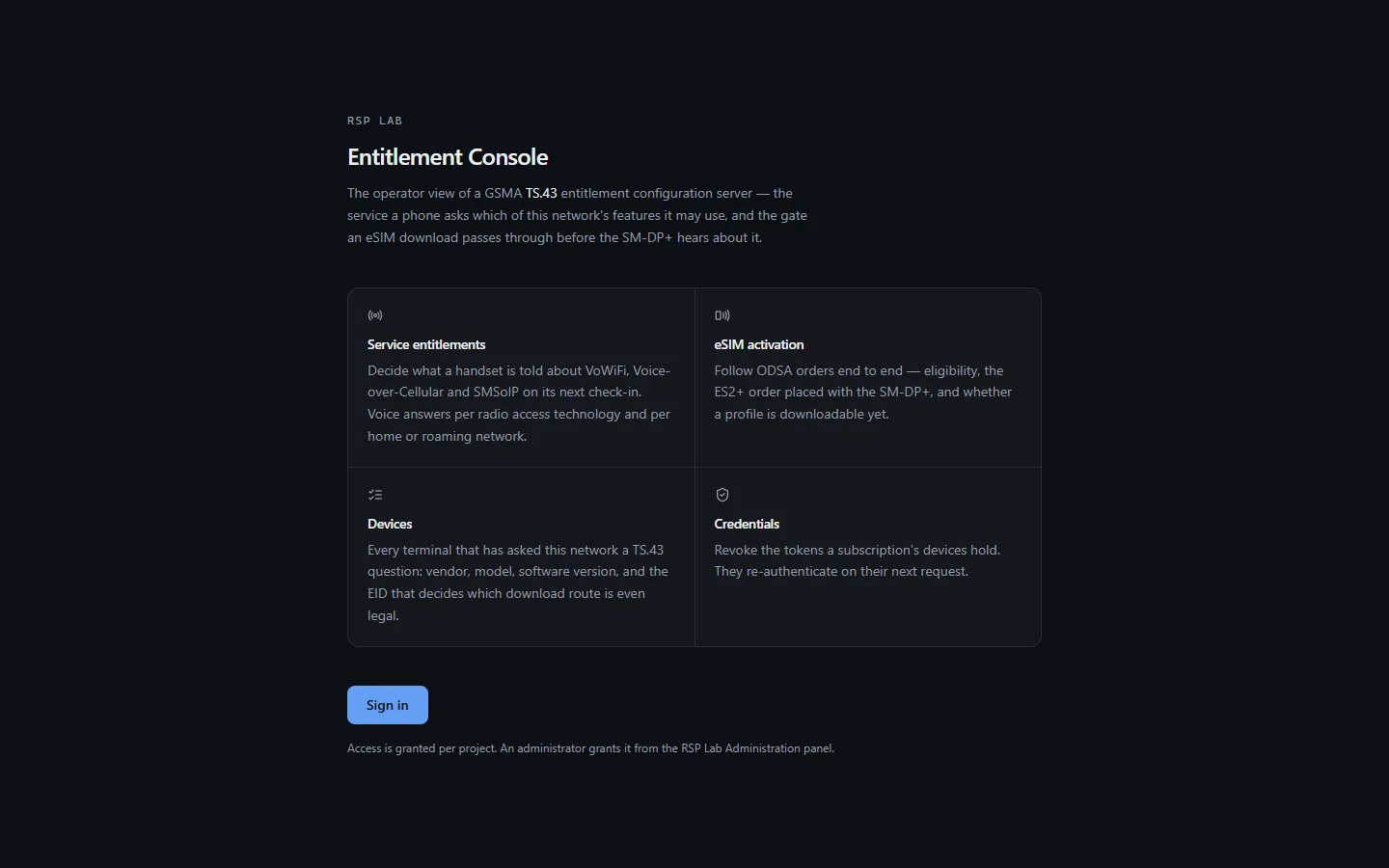
Quick path: entitle a new line
- Subscribers — create a subscriber (a name is enough). maintain
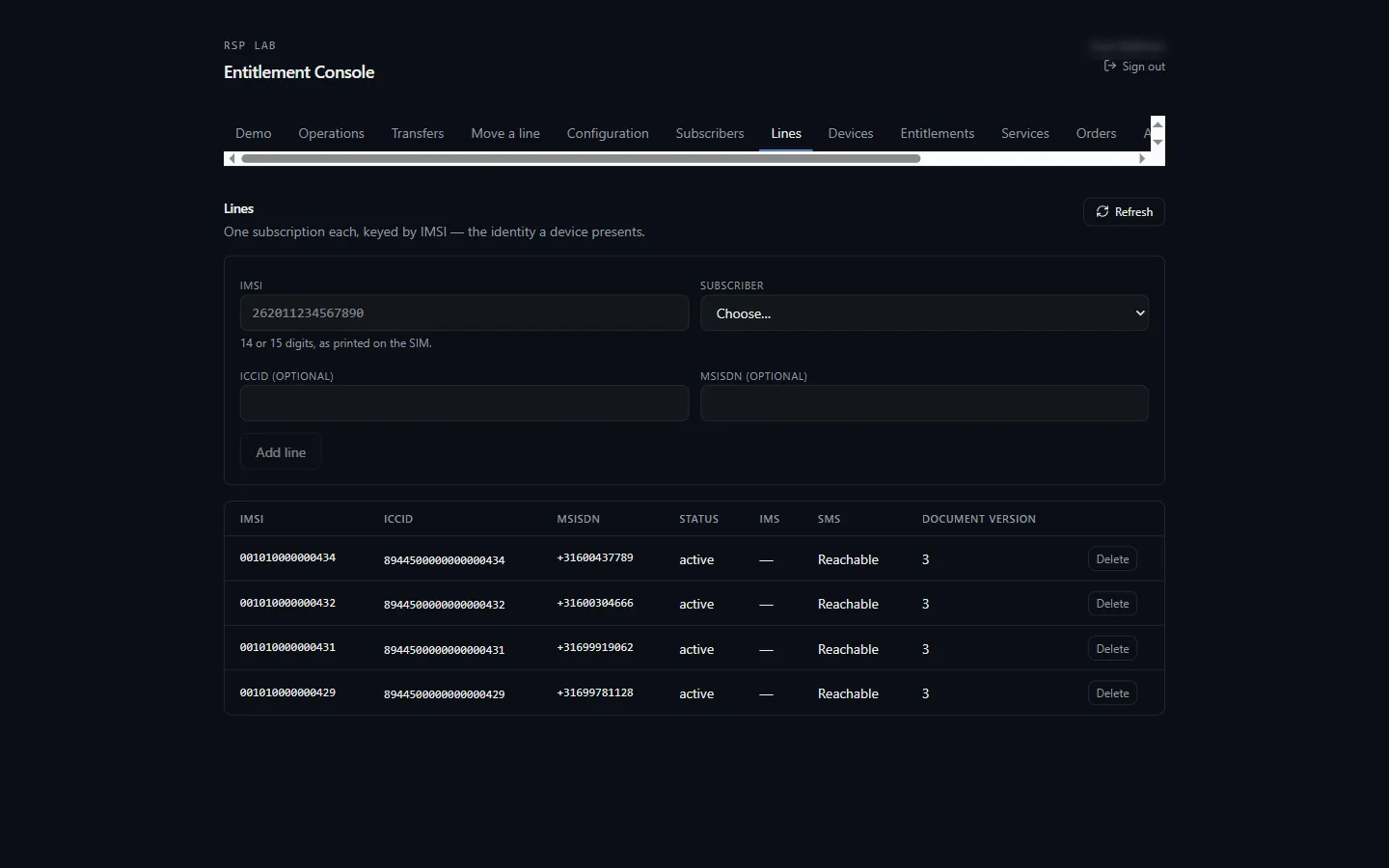
- Lines — Add line with its IMSI and that subscriber; ICCID and MSISDN are optional. maintain
- Entitlements — look the line up by IMSI, and set each service’s status with Change to. maintain
- For a device to prove it holds the line, issue it a credential under Credentials — see below. admin
The tabs
| Tab | What it is for | To change anything |
|---|---|---|
| Demo | One card per scenario: Prepare makes a line of your own for it | maintain |
| Operations | The last hour’s requests, results and alarms | maintain to act on alarms |
| Transfers | Each line move, and what a line’s next move asks for | maintain |
| Move a line | Two phones side by side, moving a line step by step | maintain |
| Configuration | What the server runs with, a connectivity check, and the error map | maintain for the error map |
| Services | Wi-Fi calling, carrier billing, satellite and RCS for one line. Wi-Fi calling shows whether the phone is registered for calls; taking it away de-registers the phone | maintain |
| Device emulator | A phone in the browser, with a watch beside it | maintain |
| Subscribers | The account holders | maintain (create), admin (delete) |
| Lines | Each subscriber’s lines, keyed by IMSI, whether each is registered for calls (IMS), and whether its phone can get SMS or is in airplane mode | maintain (add), admin (delete) |
| Devices | Devices that have asked the server anything | — |
| Entitlements | What one line may use, and its device credentials | maintain; admin for credentials |
| Orders | eSIM activation orders raised by devices | maintain (release) |
| Audit | Every change made from this console | maintain to view |
| Developer clients | Your clients of the network APIs (CAMARA), with the consents and event subscriptions they hold | maintain |
Subscribers and lines
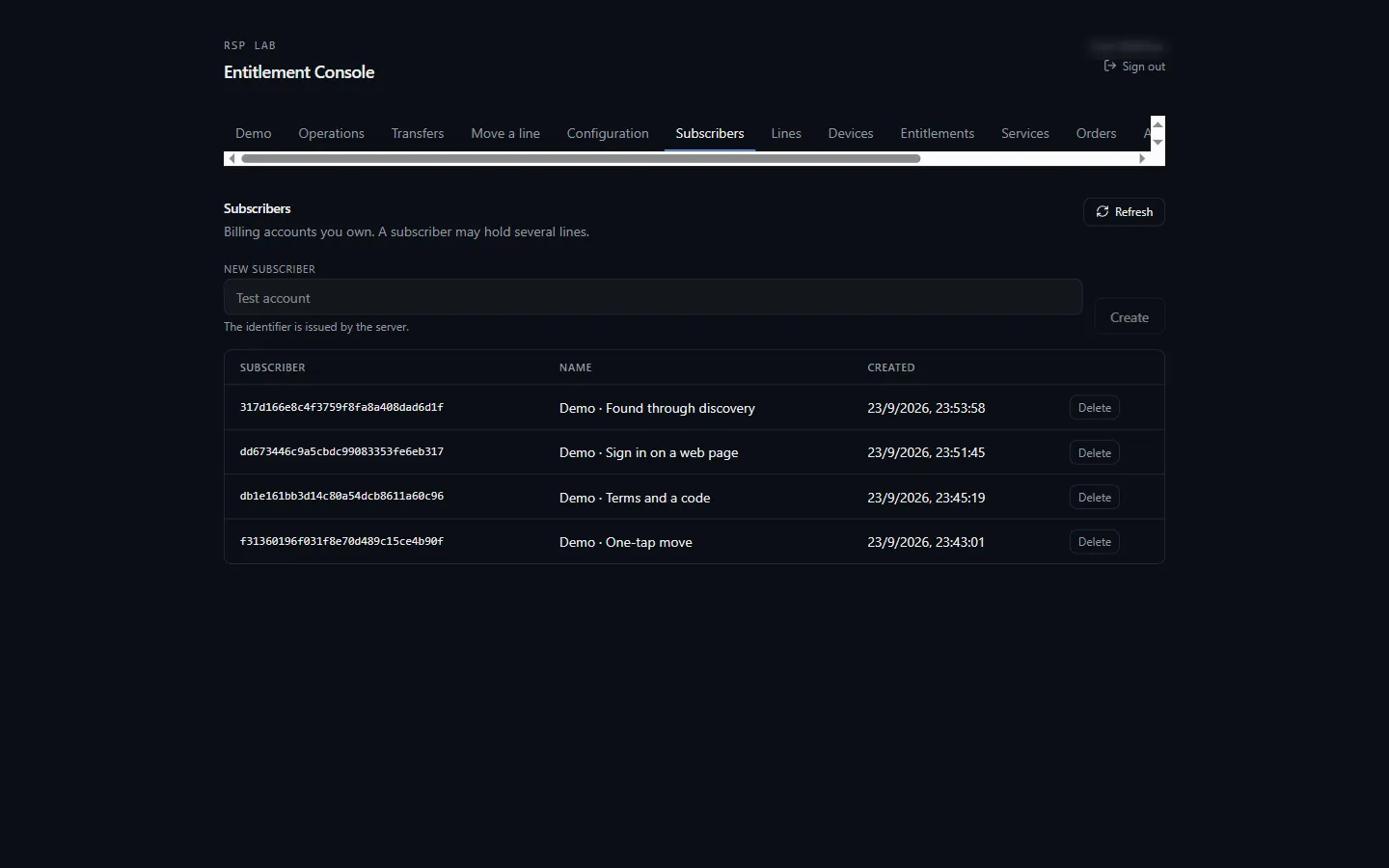
A subscriber holds lines; a line is an IMSI, optionally with its ICCID and MSISDN.
Devices
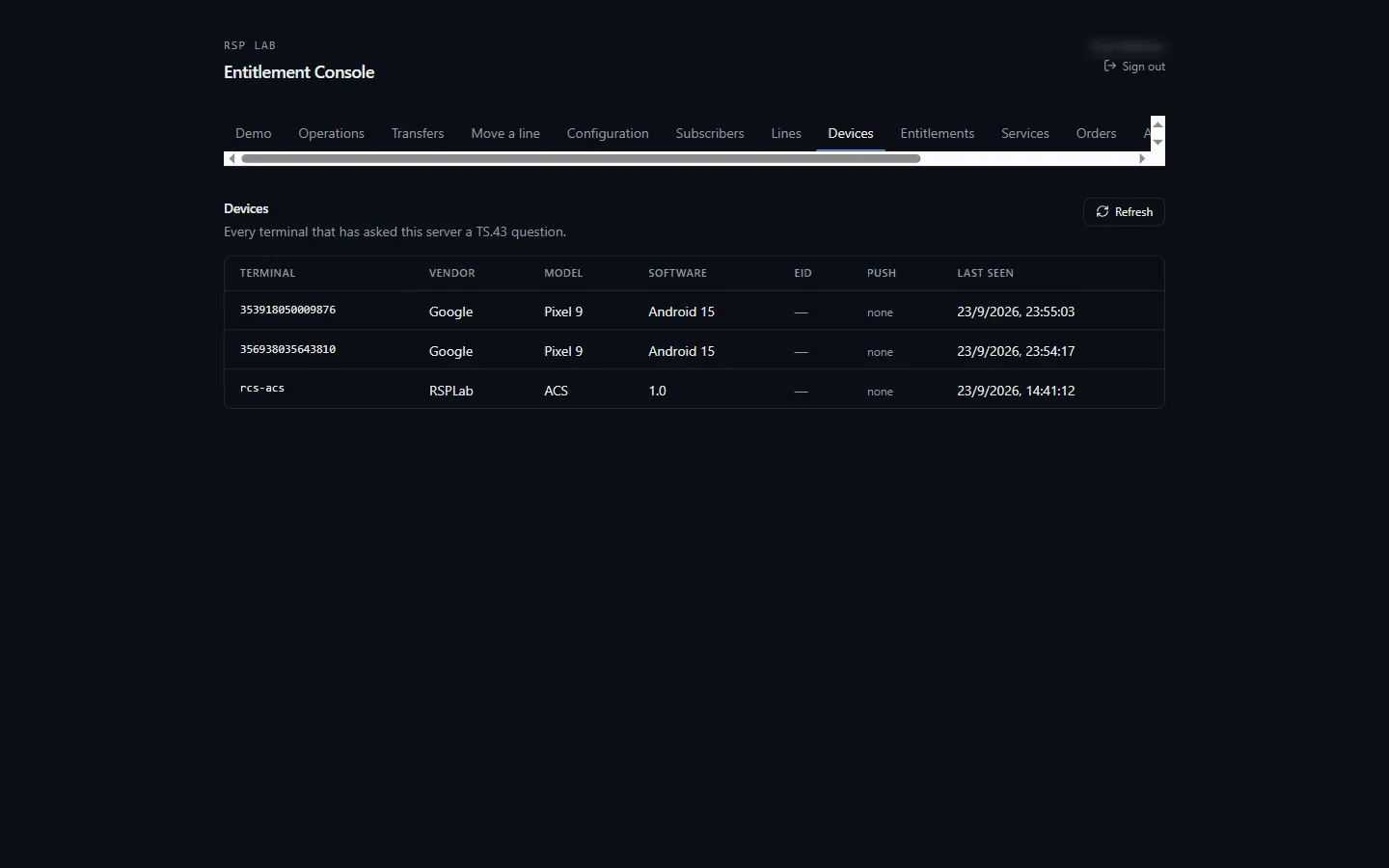
Read-only. Every device that has contacted the server — its identifier, vendor, model, software version, EID if it has an eSIM, and when it was last seen.
Entitlements
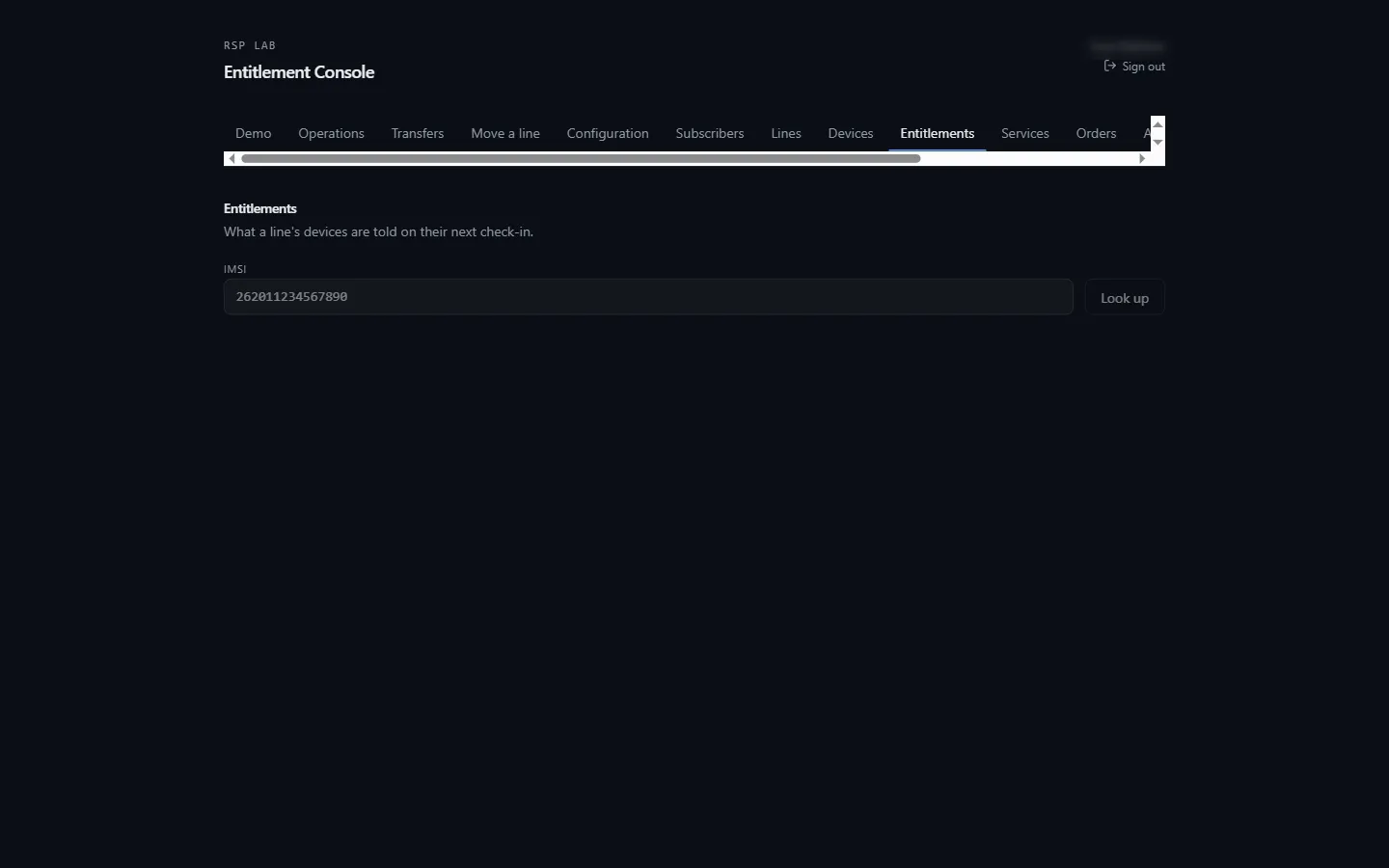
Enter an IMSI and choose Look up. Each service the line can be entitled to has a row: its status, whether terms must be accepted, and Change to to set a new status. Some services show more — Wi-Fi calling lists its access networks, and the data plan has its own editor.
Credentials
A device proves it holds a line with a token issued here.
- Issue a token (admin) creates one and shows it once. Copy it then — it cannot be shown again. Give it to the device out of band.
- Revoke tokens (admin) cancels every token for the line. Devices using them must be given a new one.
Orders
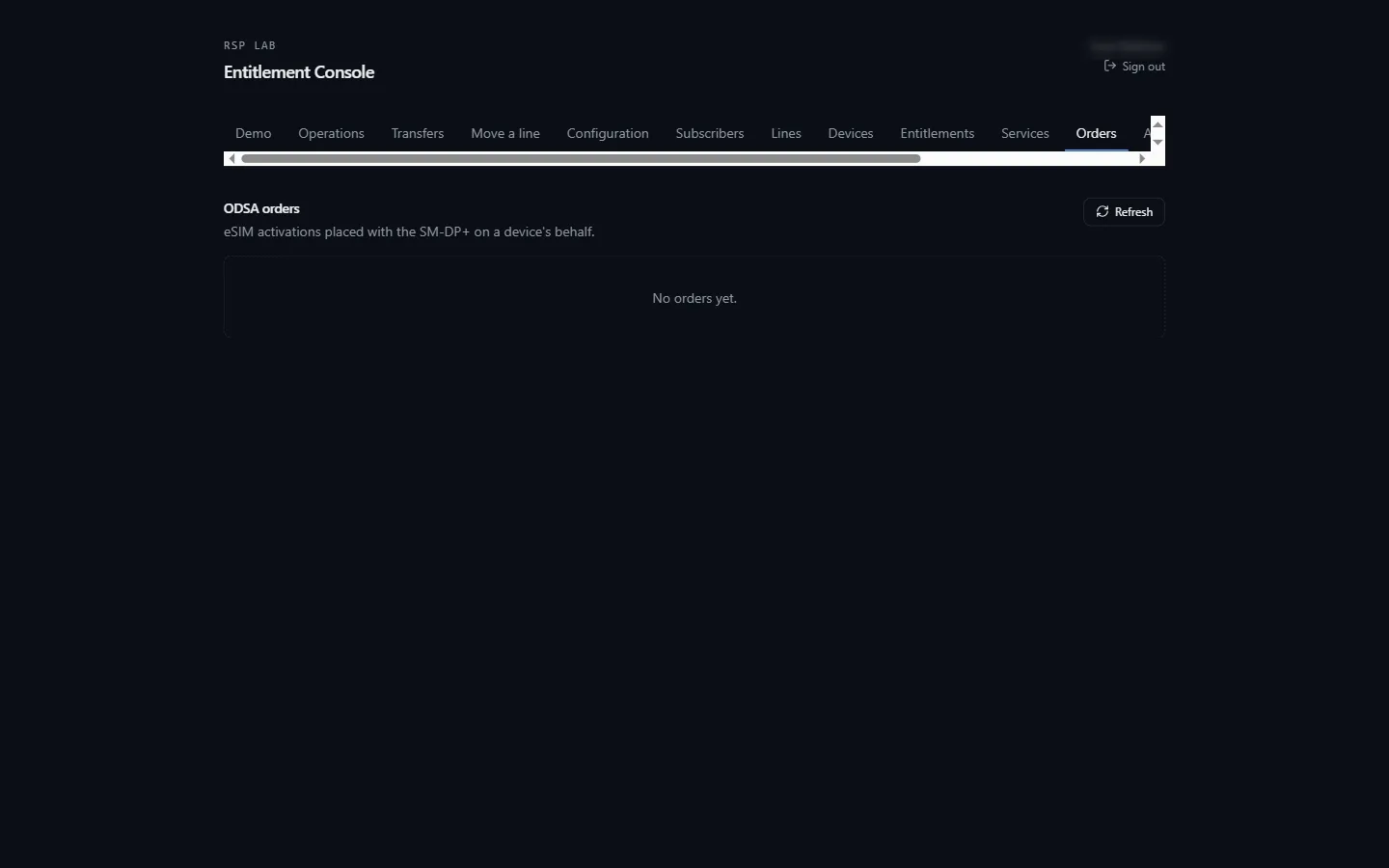
eSIM activation requests that devices have raised. The Code column shows only whether an activation code was issued — never the code itself, which goes only to the device.
An order waiting in the activating state shows Release (maintain), which lets it proceed.
Audit
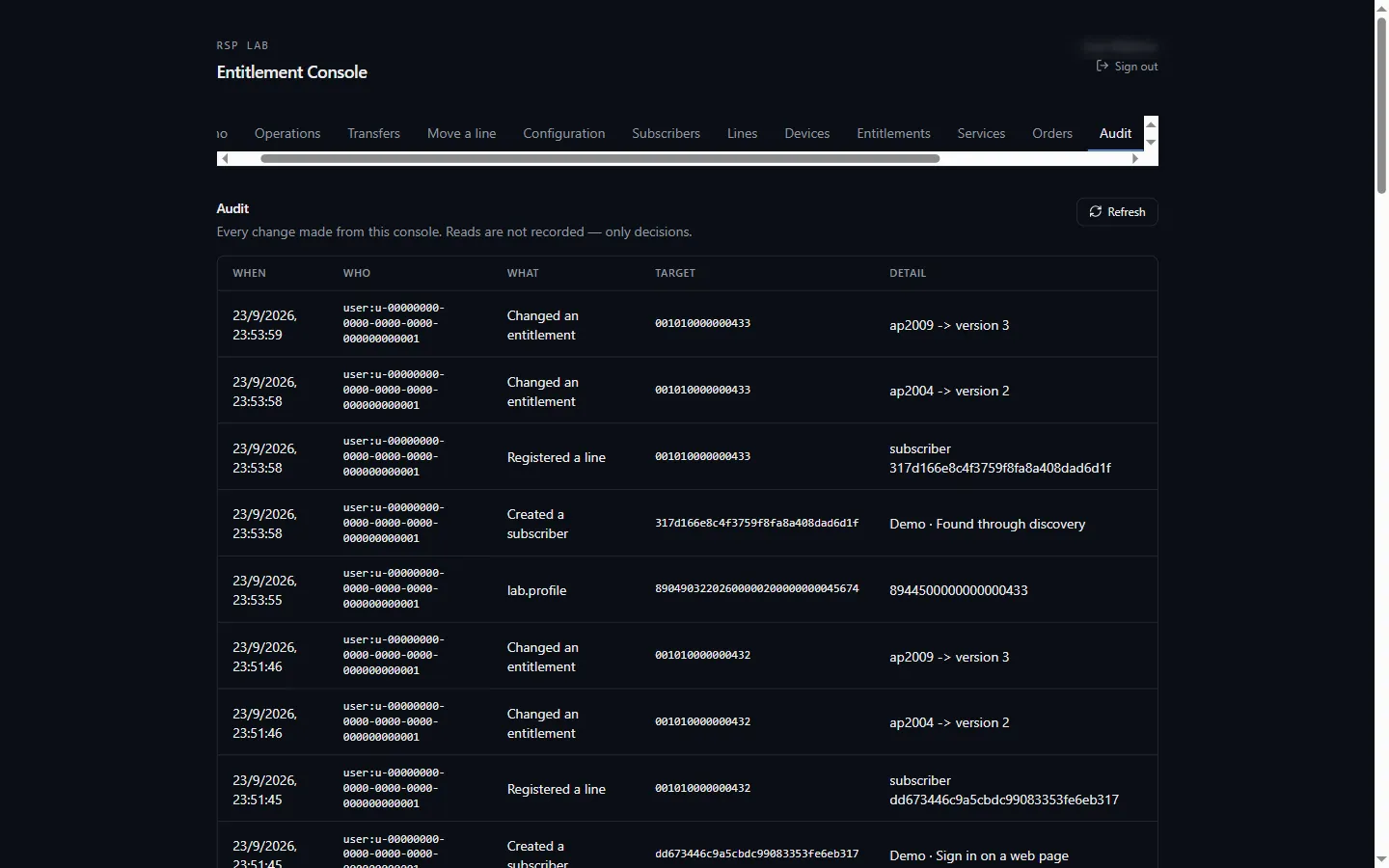
Every change made from this console: when, who, what, and to which record. Reads are not recorded — only decisions. Viewing it needs maintain.
Demo
Each card is a scenario. Prepare makes everything it needs, in about half a minute: a new emulated eSIM with a profile downloaded and enabled, a subscriber, a line with a number, the entitlements, and the operator’s rules for the scenario. The card then shows the eSIM and says where to run it — the Telecom Toolkit app, Move a line, Services or the Device emulator.
| Scenario | Shows |
|---|---|
| One-tap move | The old phone’s card vouches, and the new phone takes the line |
| Terms and a code | Terms to accept and a code sent to the old number |
| Sign in on a web page | The operator’s page, when the card cannot vouch |
| Held until released | The profile waits until you release it in Transfers |
| Found through discovery | The new phone is sent to the discovery server |
| Out of band | Nothing for the phone to do until you complete it in Transfers |
| Refused | The operator refuses with a code, and the old phone keeps its line |
| Wi-Fi calling activation | Terms and an emergency address, then network provisioning |
| Carrier billing | Terms and a monthly limit |
| Satellite | A plan, then the networks it may use |
| A watch, then a new watch | A watch signed up, then its plan moved to another watch |
| RCS | RCS configuration off, granted, and withdrawn |
Device emulator
A phone in the browser. It runs on one of your emulated eSIMs, and what it does is recorded in the shared transcript below it. The Home screen lists its apps:
| Screen | What it does |
|---|---|
| SIMs | The profiles on the card; switch which one is enabled, or move a number to it |
| Wi-Fi calling | Joins the lab Wi-Fi, opens the ePDG tunnel (EAP-AKA), then registers with the lab’s IMS core; VoWiFi shows in the status bar |
| Phone | Calls another of your phones that is registered for calls; its ringing shows here, so you can answer for it. The call log shows the length and the seconds charged |
| Call settings | Forward calls (always, when busy, when unreachable), bar all incoming calls, hide your number. Each change saves at once |
| Usage | Data, minutes and messages used this cycle. Turns data on against the charging function: usage, the final unit, and a top-up |
| Privacy | Approves or refuses what an app asks to know about the line (CAMARA consent) |
| Lab bank | An app that signs in and checks payments with the network APIs. It signs in either with the phone itself or with a code sent by SMS |
| Messages | Texts to and from the line’s number, as conversations. Send to any of your lab numbers and watch each message get delivered; it refreshes while open |
| Watch | Pairs a watch and gives it a plan of its own |
Messages holds real SMS from the lab’s SMS service, such as sign-in codes and transfer codes. Messages for the phone’s apps (an entitlement notification to port 8095, for example) are listed under System. A real phone never shows them to the user. The Home screen shows how many messages are new.
Each text you send uses one message of the line’s plan, shown in Usage. When none are left, the phone says so and nothing is sent.
Airplane mode, at the top of the Home screen, takes the phone off the network. Texts to it wait, marked Phone unreachable, will retry, and arrive as soon as airplane mode is off.
Developer clients
The clients your applications use to call the network APIs at
https://api.rsplab.click/camara. Register one with a name and the grants it
may use; its private key is shown once and can be downloaded, and the lab keeps
only the public key. tel: lets the client name a line by its number instead
of asking the phone.
Below the clients are the Consents your subscribers gave them, each of which you can revoke, and the Subscriptions they made, with the events delivered to the lab’s inbox. Revoke stops a client from getting new tokens; Delete removes it with its consents and subscriptions.
Transfers
The list shows every line move, how far it got, whether the old phone’s card vouched, and whether the user answered what they were asked. Two states wait for you:
- Profile held — Release profile makes it downloadable and tells the new phone.
- Waiting for the operator (out of band) — Complete out of band finishes the move; the new phone finds its profile through the discovery server.
Below the list, choose a Line to set what its next move asks for: allow transfers, terms (with their text), a code, always sign in, release later, find it through discovery, out of band, or refuse with a code.
Services
Choose a line. For Wi-Fi calling, carrier billing and satellite you see where each stands and what the operator’s page captured — the address, the monthly limit, the plan. Needs activation puts a service back to the start, so the phone’s activation can be run again. Carrier billing lets you choose whether its terms are asked on the page or in the phone’s own prompt; satellite takes a list of barred networks.
RCS grants or withdraws RCS for the line. Withdrawing it tells the phone at once.
Operations and Configuration
- Alarms appear on Operations when something is wrong in the last hour. Acknowledge marks one as seen; Clear hides it until it happens again.
- Configuration → Check now calls every service the entitlement server depends on and shows whether each answered, and how quickly.
- Configuration → Error map decides what a phone is told when the operator’s systems refuse a move: each kind of failure maps to one of four messages. Try it shows the message for any failure.
Troubleshooting
| You see | Why | What to do |
|---|---|---|
| No access to this console | No grant on the entitlement project | Ask for access |
| A device is refused with “no credential” | The device sent no token | Issue one under Entitlements → Credentials |
| A service shows as not entitled after you changed it | The device has a cached answer | The device refreshes on its own schedule |
| The Audit tab is refused | Viewing the audit needs maintain | Ask for maintain |
| Prepare fails at “A profile…” | The eSIM service or profile server is not answering | Configuration → Check now, then try again |
| A line you prepared is not in the phone app | The app lists only eSIMs with a line, loaded when the screen opens | Go back and open Entitlement again |