Admin panel
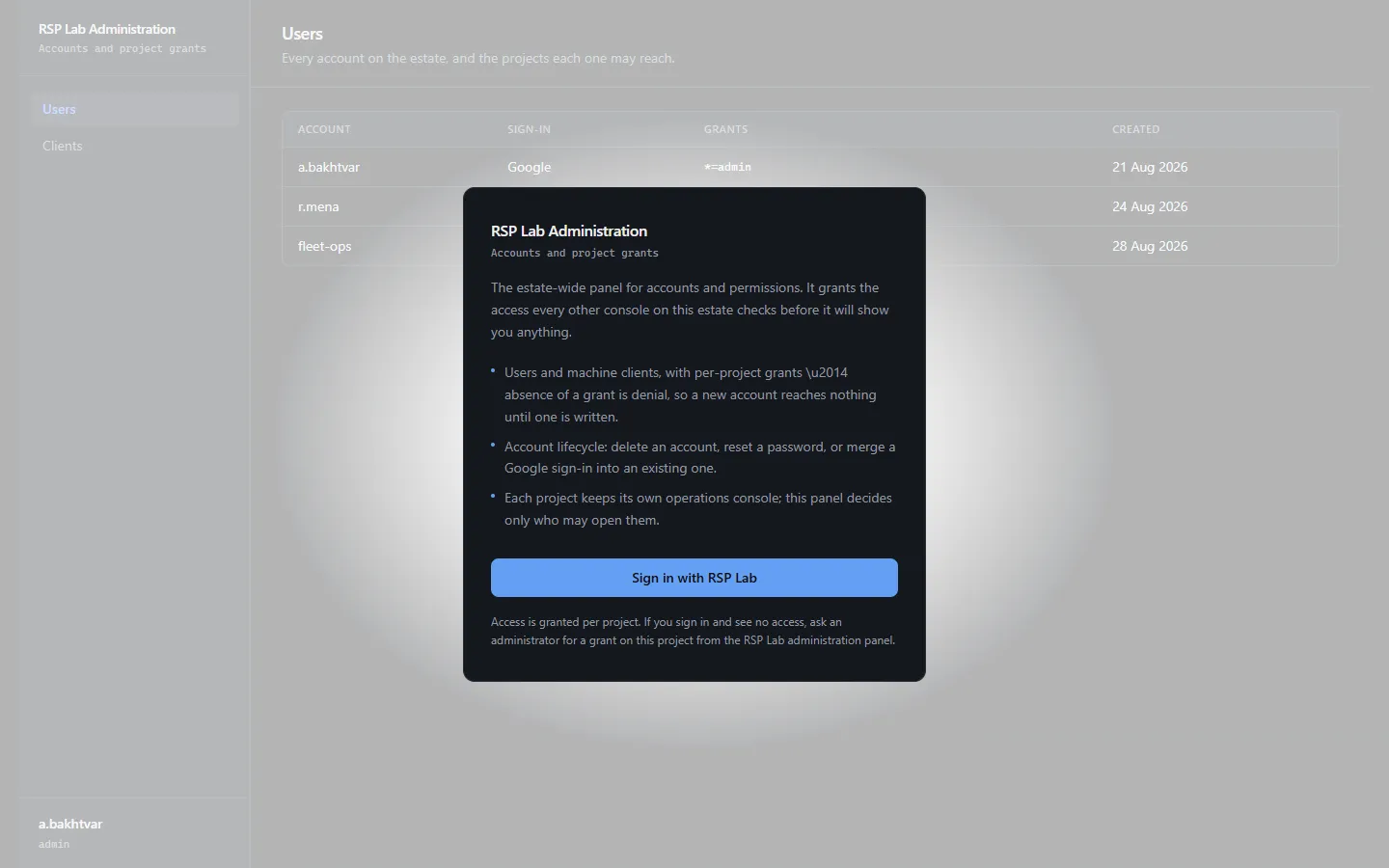
The Admin panel is where access is granted. Every account that can sign in to RSP Lab is listed here, with the role it holds in each application. Administrators grant and revoke that access, and handle the rare account problems: disabling sign-in, ending sessions, merging duplicates, deleting an account.
| Address | admin.rsplab.click |
| Access | a grant on the admin project — read to look, admin to change |
| Sign-in | RSP Lab account |
Quick path: give someone access
- Open Users and find them — filter by name or email.
- Select them. Their details and Access open on the right.
- In the grant editor, pick the project from the list and choose a role, then grant it.
- They get the new access the next time they sign in.
Someone who has no account yet: choose Invite user, and their access can be granted straight away — before they have ever signed in.
| Application | Project |
|---|---|
| SM-DP+ console | smdpp |
| eIM console | eim |
| OTA console | ota |
| SM-DP console | smdp |
| SM-SR console | smsr |
| Entitlement console | entitlement |
| ASN.1 Editor | asn1editor |
| Attach Flow Inspector | open5gs |
| eSIM simulator | simulator |
| Applet Lab | appletlab |
| This panel | admin |
| Engineering documentation | docs |
* means every project. Use it sparingly: a role on * applies to applications
that do not exist yet.
Users and clients
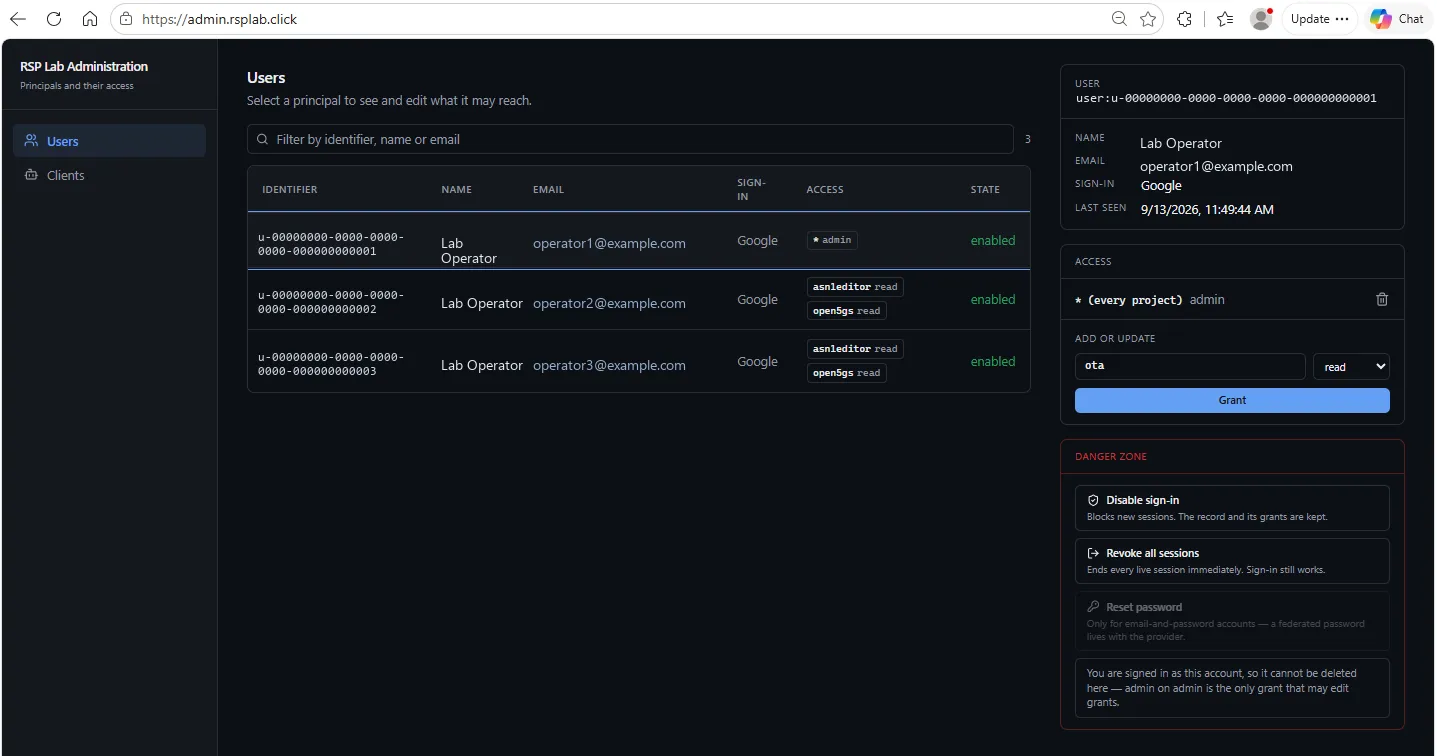
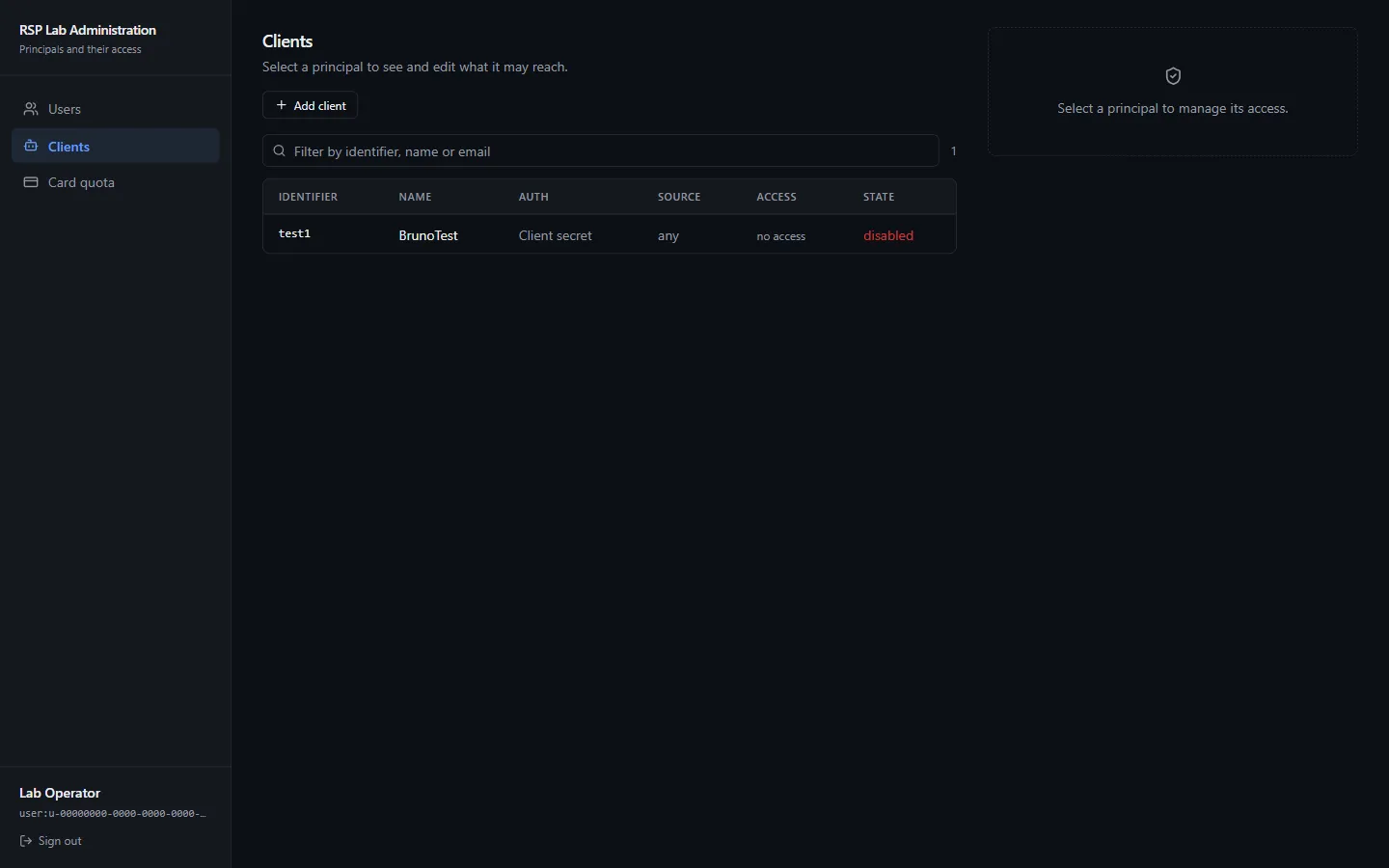
Users are people. Clients are machines — scripts and services that sign in on their own. Both tables show each account’s identifier, name, email, how it signs in, one chip per grant, and whether it is enabled.
On a phone the panel reflows: the sections become a row across the top, and the details of whoever you select open underneath the list instead of beside it.
What an administrator can do
| Action | What it does |
|---|---|
| Grant / Revoke | Add, change or remove one role on one project |
| Disable / Enable sign-in | Stop an account signing in, without deleting it |
| Revoke all sessions | Sign the account out everywhere, now |
| Invite user | Create an email-and-password account. They are emailed a temporary password, valid three days. |
| Set password | Set one directly: temporary (they must change it at the next sign-in) or permanent. At least 12 characters, including a lowercase letter. |
| Reset password | Email a reset code (email-and-password accounts only). On an account that has never signed in, the invitation is sent again instead. |
| Delete this user | Remove the account and all its access. Asks you to type to confirm. |
| Rotate secret | Issue a client a new secret. The old one stops working. |
You cannot delete the account you are signed in as.
Same person, two accounts
Signing in with Google one day and an email and password the next creates two accounts. When the panel sees a password account sharing an email with a Google account, it offers Same person, two accounts.
Merging copies the Google account’s grants onto the password account — keeping the higher role wherever both have one — and then deletes the Google account.
Troubleshooting
| You see | Why | What to do |
|---|---|---|
| No access to this panel | Your account holds no grant on admin | Another administrator must grant it |
| Buttons refuse with a role error | You hold read on admin | Ask for admin |
| Password actions are unavailable | The account signs in with Google | Google manages that password |
| An invited person never got the email | Mail from the sign-in service is often filtered | Ask them to check spam, or use Set password and tell them directly |
| Someone still has access after a revoke | Their session is still open | Revoke all sessions |